
Instagram carousels are among the most engaging formats on the platform, as they keep people swiping, saving, and sharing far more than single-image posts.
After all, users (creators, brands, etc.) have up to 20 slides to work with, and with so much room, you can teach, compare, reveal, and storytell as you couldn’t before.
However, creating a polished carousel post on Instagram takes time. You have to choose the right layout, copy, and design consistency. Think of tutorial posts, before-and-after transformations, and product showcases, all of which can be done with Instagram carousels.
Also, the smartest brands repurpose Instagram carousel posts on their websites to extend their reach, boost SEO signals, and showcase UGC automatically.
That’s exactly where our AI UGC widgets come in: with one prompt, you generate an Instagram carousel widget, customize it, and easily embed it anywhere.
Below, I give you 10 Instagram carousel templates, plus the easiest way to embed that Instagram carousel feed via a high-converting website widget with AI.
What is an Instagram carousel and why you need it for your brand?
An Instagram carousel is a swipeable post made of multiple images or videos that appear together in a single piece of content on Instagram.
‘Instagram carousel’ definition
Instead of using a single image, a carousel builds momentum slide by slide, guiding your audience through a story, a tutorial, a comparison, a product sequence, etc.
Whether you’re educating, inspiring, or selling, carousel Instagram posts expand your message without overwhelming your feed. Here are some of their benefits:
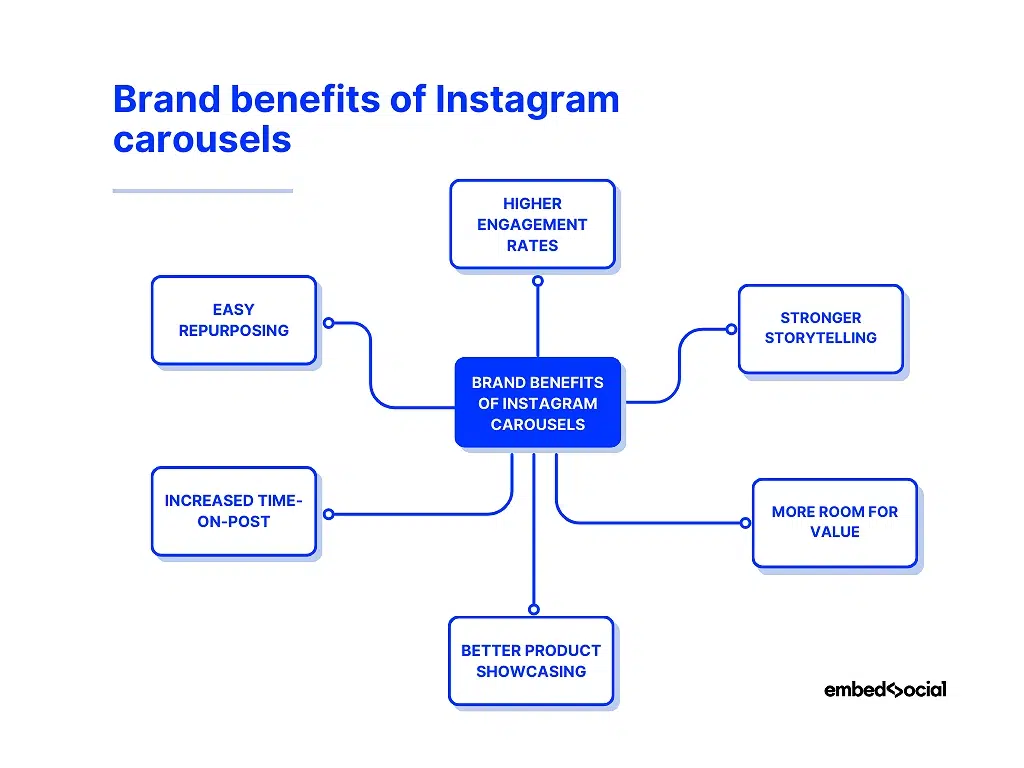
- Higher engagement rates, carousels generate more swipes, saves, comments, and shares than single-image posts;
- Stronger storytelling, you can present ideas in a clear narrative flow, turning each slide into a chapter of your message;
- More room for value, tutorials, FAQs, comparisons, and educational content perform exceptionally well in multi-slide form;
- Better product showcasing, you can highlight features, variations, use cases, and social proof in a structured, visual way;
- Increased time-on-post, every swipe signals deeper interest to the algorithm, improving reach and discoverability;
- Easy repurposing, a single carousel becomes reusable content for ads, emails, and, with AI UGC widgets, embeddable website displays.
As you can see, the Instagram carousel is great for product-first brands looking to hold the attention of their customers and encourage interaction with their content.
10 Instagram carousel templates to inspire your next post
Lacking inspiration for your next Instagram post? Below, you’ll find 10 best Instagram carousel ideas (available on Canva) that you can use right away!
1. “Before and After” template
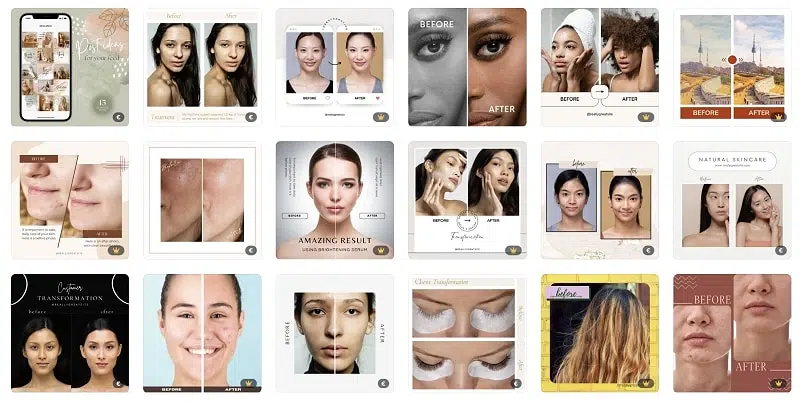
The “Before and After” template is a popular option for carousel Instagram posts for brands operating in the beauty, fitness, and home improvement sectors.
These types of brands can use this template to showcase the transformative effects of their products or services. The idea is to present a side-by-side comparison of a “before” and an “after” image or video, demonstrating the brand’s positive impact.
Here are some scenarios where this approach works:
- A beauty brand can showcase a customer’s skin transformation
- A fitness creator can highlight a client’s before-and-after progress
- A home improvement brand can reveal a room makeover in one swipe
- A makeup artist can display a client’s before-and-after look or process
Find more “Before and After” Instagram carousel templates on Canva.
2. “Step-by-Step Tutorial” template
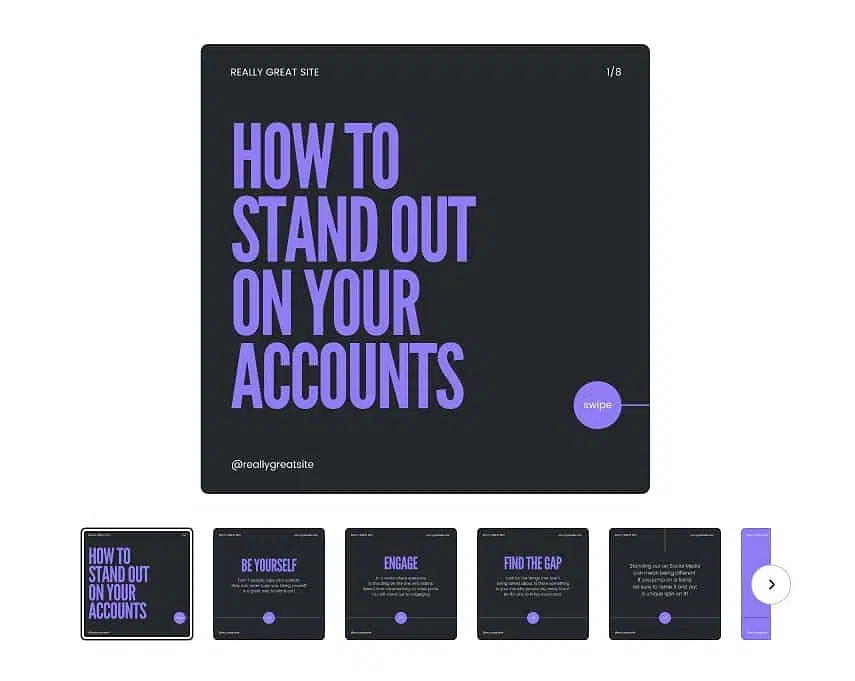
As the name suggests, the “Step-by-Step tutorial” template for carousel Instagram posts is an excellent way to share educational or instructional content with your audience.
This template is designed to break down complex processes, ideas, or tips into smaller, more digestible steps using a series of easy-to-understand images or graphics.
Here are some ideas on how to use this template in different niches:
- A simple recipe with step-by-step photos or illustrations
- A complex food preparation process, like making homemade pizza or sushi
- A series of exercises that target specific muscle groups
- A tutorial on how to make a specific hairstyle or makeup idea
- A photography tutorial on how to capture stunning landscape or portrait shots
Find more “Step-by-Step Tutorial” Instagram carousel templates on Canva.
3. “Facts and Figures” template
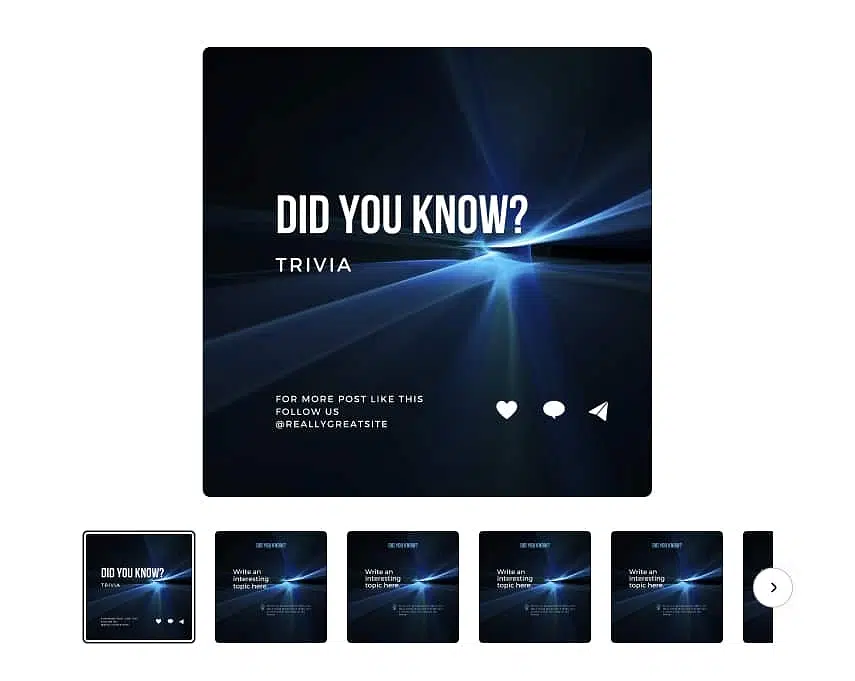
The “Facts and Figures” template is an engaging way to present valuable or surprising information to your audience through Instagram carousel posts.
This template uses a combination of infographics, charts, illustrations, and concise text to present data or statistics in an easily consumable and catchy format.
It’s an excellent way to educate your followers, spark conversation, and establish your account as a reliable source of information.
Here are some ideas for these types of Instagram carousel posts:
- Data about the effectiveness of renewable energy sources
- An illustration of the benefits of reducing meat consumption
- Interesting facts about nutrition and the impact of certain foods
- Statistics on the average debt or savings in your age group
- Insights on the benefits of investing in stocks, real estate, or other assets
- Data on the most budget-friendly countries or cities to visit
Find more “Facts and Figures” Instagram carousel templates on Canva.
4. “Top 10 List” template
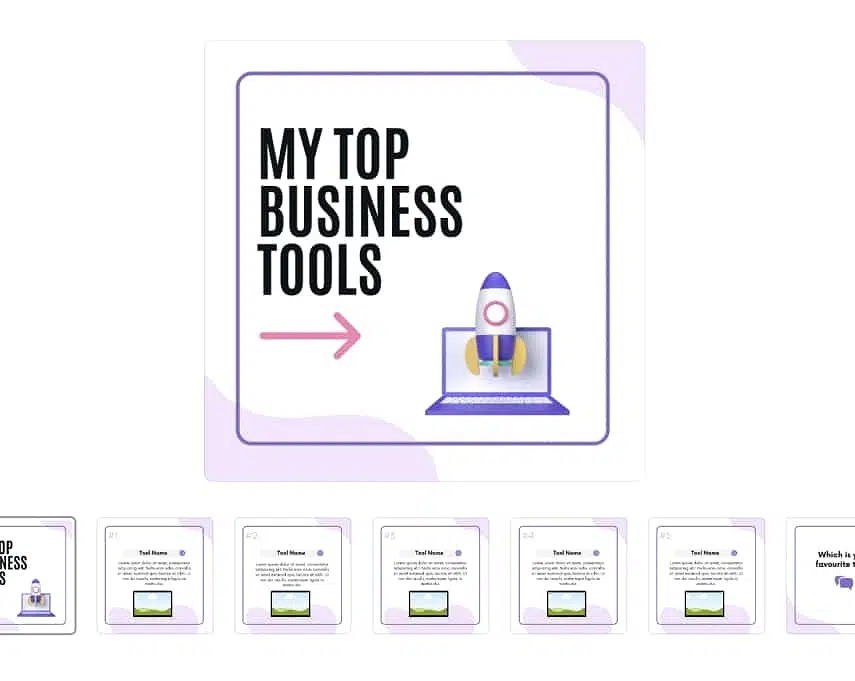
Use this one to share hand-picked content with your followers on any number of topics. Who doesn’t love a good and clear list of something interesting in a specific niche, right?
This fun and visually captivating template presents a carefully curated selection of items, tips, products, or ideas, shown one by one to showcase their importance.
Each carousel slide can represent a unique item in lists such as:
- Top 10 must-visit attractions in a city or country
- Top 10 essential kitchen tools for home cooks
- Top 10 restaurants or cafes in a city
- Top 10 superfoods for optimal health
- Top 10 wardrobe staples every person should own
- Top 10 tech gadgets or innovations of the year
Find more “Top 10 List” Instagram carousel templates on Canva.
5. “Behind the Scenes” template
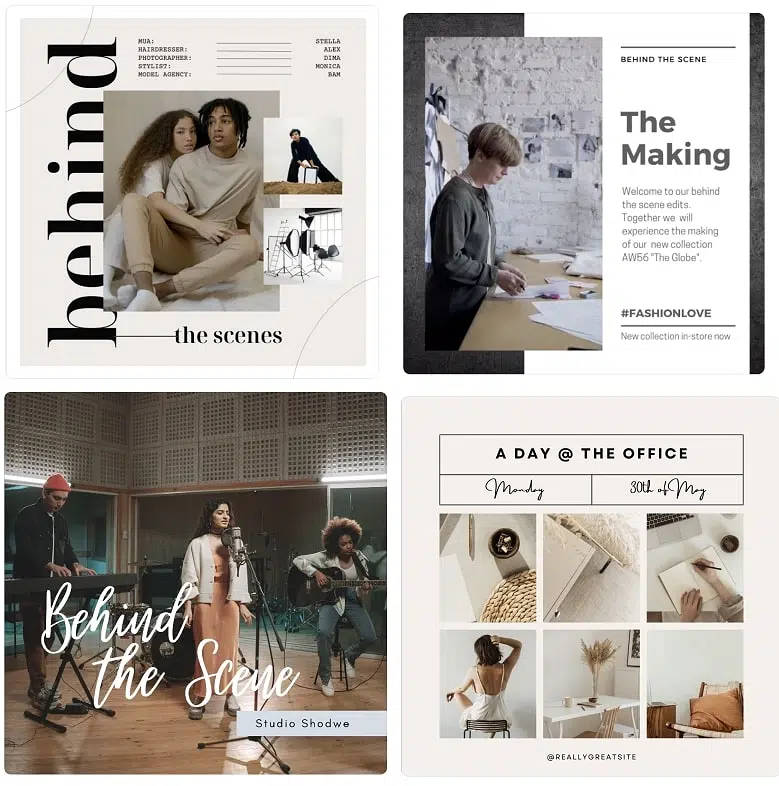
This is a carousel post full of authentic, relatable, and unfiltered images or videos that show your brand’s unpolished side, along with captions that tell a real story.
You can cover the emotions, challenges, and highlights of each moment. You can even invite your followers to share their own behind-the-scenes experiences.
Here are just some of the scenarios in which this post makes sense:
- A day in the CEO’s or employees’ life to showcase the company culture
- The process of creating and launching a new product or service
- A look at your studio, workspace, and favorite tools and materials
- Footage from a photoshoot or fashion show with initial preparations
- A day in the life of a chef with meal planning and cooking
Find more “Behind the Scenes” Instagram carousel templates on Canva.
6. “Questions & Answers” template
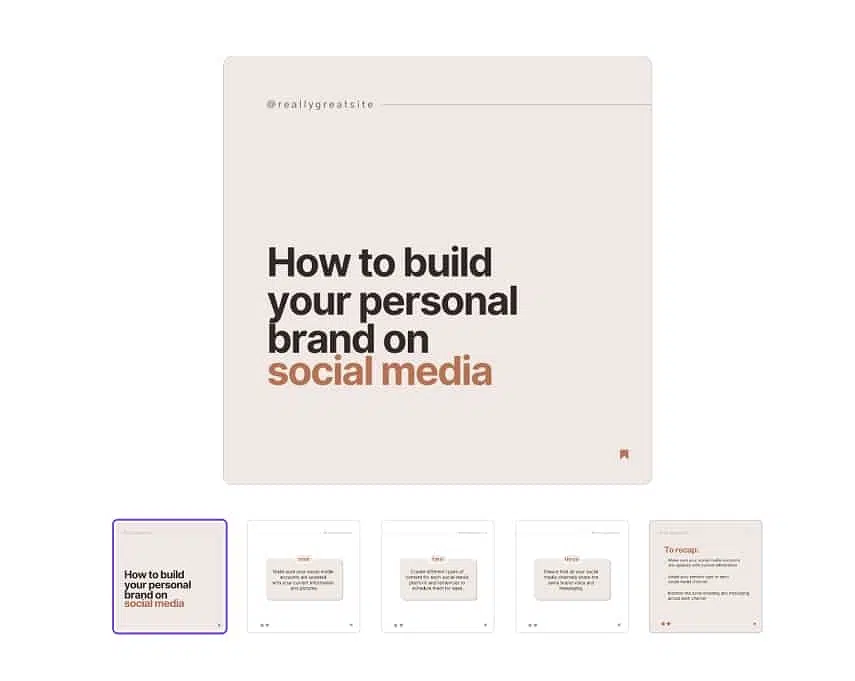
This type of carousel Instagram post is a great opportunity to address your followers’ questions and concerns regarding your products or services.
It’s an optimal approach for interacting with your audience since you are inviting them to pose questions that you can answer afterwards.
Plus, once posted, this content will serve as a go-to resource for future potential customers interested in your products and services. So, two birds with one stone, right?
Here are a few real-world scenarios that can use this template:
- A skincare brand answering common customer concerns about ingredients
- A SaaS company breaking down FAQs about pricing or onboarding
- A fitness coach responding to follower questions about training or nutrition
- A café or restaurant clarifying menu options, allergens, or ordering details
- A travel brand addressing common doubts about destinations or itineraries
Find more “Questions & Answers” Instagram carousel templates on Canva.
7. “Comparison” template
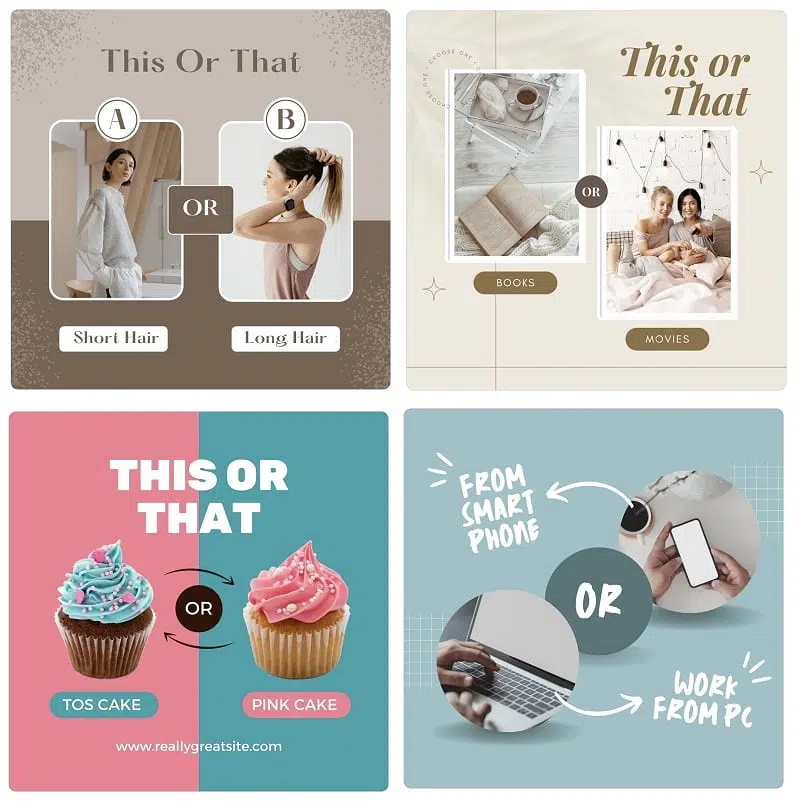
With a “This or That post” for carousels on Instagram, you can present a side-by-side comparison of two or more products, ideas, services, etc.
Your audience can better understand the topic matter at hand by comparing via images, graphics, or charts. Here are a few examples where the template proves useful:
- Compare the specifications, features, and prices of tech products
- Compare the benefits and drawbacks of various diets or supplements
- Compare popular travel destinations, including costs and attractions
- Present a side-by-side analysis of credit cards, savings accounts, or loan options
- Compare the taste, nutrition, and preparation of different food recipes
Find more “Comparison” Instagram carousel templates on Canva.
8. “Product Showcase” template
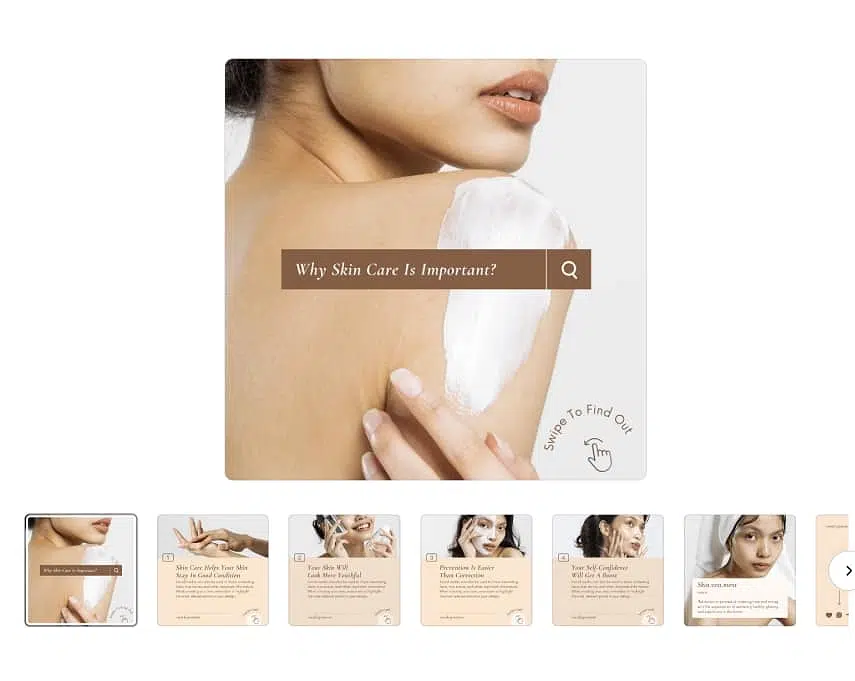
As you’ve probably guessed, the “Product Showcase” helps businesses and content creators to effectively display products and services in a visually engaging manner.
This template primarily focuses on highlighting product features, benefits, and the overall value proposition in a coherent and attractive format.
Use this template to showcase products in various ways:
- A fashion brand displaying color and style variations of a new release
- A tech company highlighting key features of a newly launched gadget
- A beauty brand showing product benefits alongside UGC and star ratings
- A home décor store presenting a full room setup using its own products
Find more “Product Showcase” Instagram carousel templates on Canva.
9. “Recipe or DIY Tutorial” template
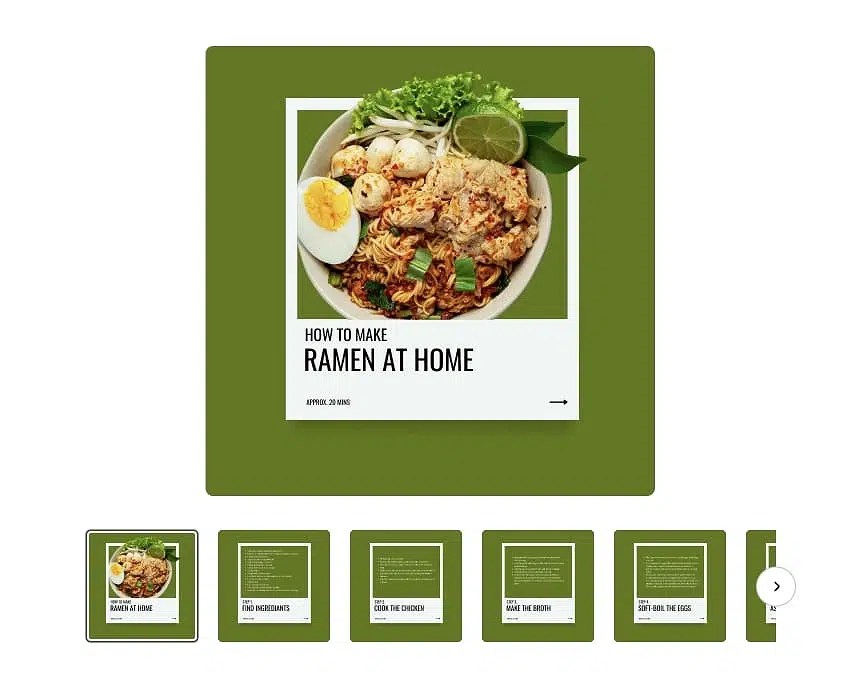
If you have a cooking or crafting-related brand, this template will do wonders for you, as it allows you to easily share all the steps covered by the process.
You can include rich visuals of the ingredients or materials involved, along with a captivating display of the final result, which is bound to prove inspiring! As such, it’s perfect for food bloggers, chefs, restaurants, food brands, DIY crafters, and similar.
Here are some ideas on how to use this template in front of your audience:
- A food blogger breaking down a quick step-by-step recipe
- A restaurant showcasing how a signature dish is prepared
- A craft brand teaching followers how to create a simple DIY project
- A beauty brand sharing a DIY skincare or haircare routine
- A photography creator teaching a beginner-friendly editing workflow
Find more “Recipe or DIY Tutorial” Instagram carousel templates on Canva.
10. “Storytelling” template
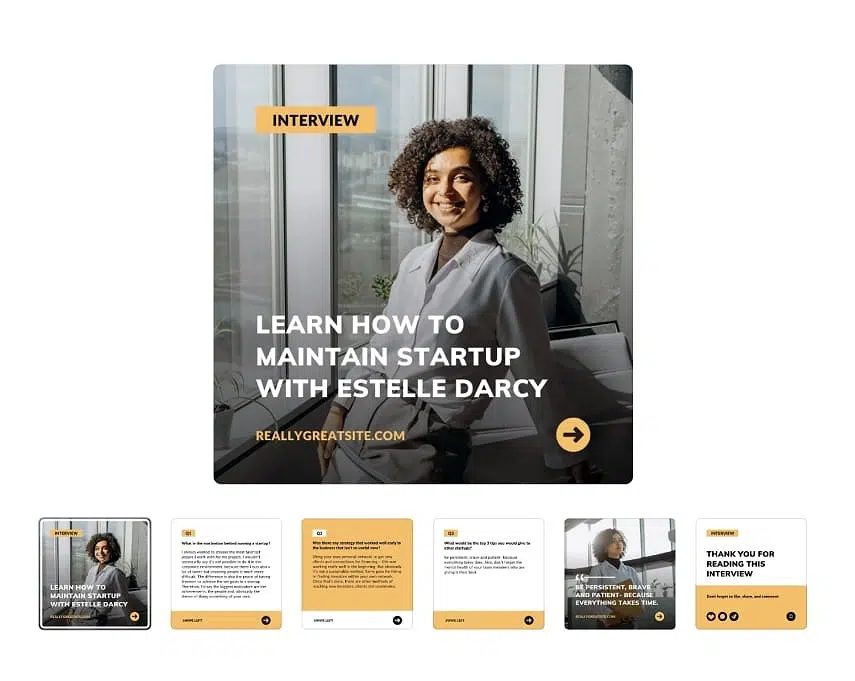
With the “Storytelling” Instagram carousel template, you can share captivating narratives, anecdotes, and visual experiences with your audience.
This template allows you to emotionally connect with your followers as you’re grabbing their attention, nurturing empathy, and sharing a genuine moment.
Here are some good real-life carousel examples for this scenario
- A founder sharing the journey behind starting the brand
- A nonprofit telling a powerful impact story from the community
- A fashion label revealing the inspiration behind a new collection
- A customer walking through their transformation or success story
Find more “Storytelling” Instagram carousel templates on Canva.
How to make a carousel on Instagram and publish it?
Creating Instagram carousel posts within the app and posting them is similar to publishing a single post, but with a couple of extra steps. Here’s what you need to do:
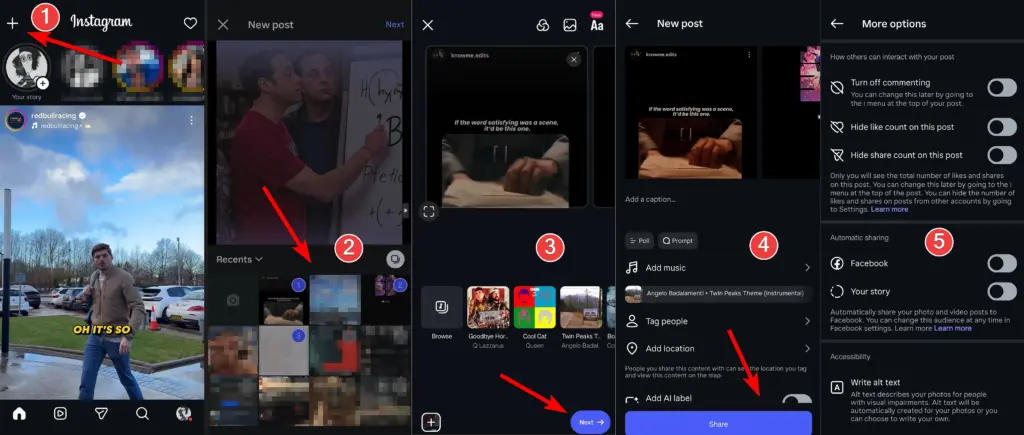
- Click + to create an Instagram post: Open up your Instagram profile and click on the plus (+) icon in the top-left corner of the screen.
- Select multiple photos/videos: Tap the ‘Post’ option and select all the pictures or videos you would like to add to your Instagram carousel.
- Customize your carousel post on Instagram: In the next step, you can add music, filters, more images, text, and other elements to your post.
- Finalize your carousel post on Instagram: In the last step, you can add your caption, tag people, add your location, choose your audience, and cross-post your content.
- Choose additional options: Right before posting, you can also tweak the post’s privacy settings, write alt text, etc., before you tap ‘Share’ to send it live.
Bonus step: Create your Instagram carousel template in Canva
All the top 10 Instagram carousel templates I shared with you previously are available for free on Canva, and that platform is among the easiest to use when it comes to creating your own template. You don’t need any advanced design skills or a huge time investment.
Here’s what you have to do:
- Step 1: Create and sign in to your Canva account (there’s a free tier).
- Step 2: Search for ‘Instagram carousel template’ via the top search bar.
- Step 3: Choose and open a template that suits your needs and goals.
- Step 4: Design your carousel post on Instagram by adding, removing, or editing various elements: text, images, shapes, fonts, colors, layouts, etc.
- Step 5: Create as many slides as you need using the same design until you include all your content. You can right-click any Canva page and tap ‘Duplicate page’.
- Step 6: Save and download your design by tapping ‘Share’ (top-right corner) and then ‘Download’. You can download the image in various formats and sizes.
Once you are done, just transfer all images to your phone, so you can complete the process I outlined previously and post your brand new, pro-grade Instagram carousel post.
Pro tip: Check out the Instagram carousel ideas shared above before creating your post. You will save time searching for the right template for your post.
5 AI-generated widget templates for embedding your Instagram carousels
You’ve created and published your Instagram carousel, right? Now what? Well, now you make it work for you harder by embedding that UGC on your website.
You can turn that content into a long-lasting asset via dynamic website widgets. With AI UGC widgets, your carousel doesn’t just live on Instagram, it becomes a dynamic, high-converting visual block that boosts engagement, showcases social proof, and updates on its own.
Below are 5 AI-generated UGC widget templates created in minutes with text prompts in EmbedSocial, which allow you to repurpose Instagram carousels everywhere.
1. Image Card Feed
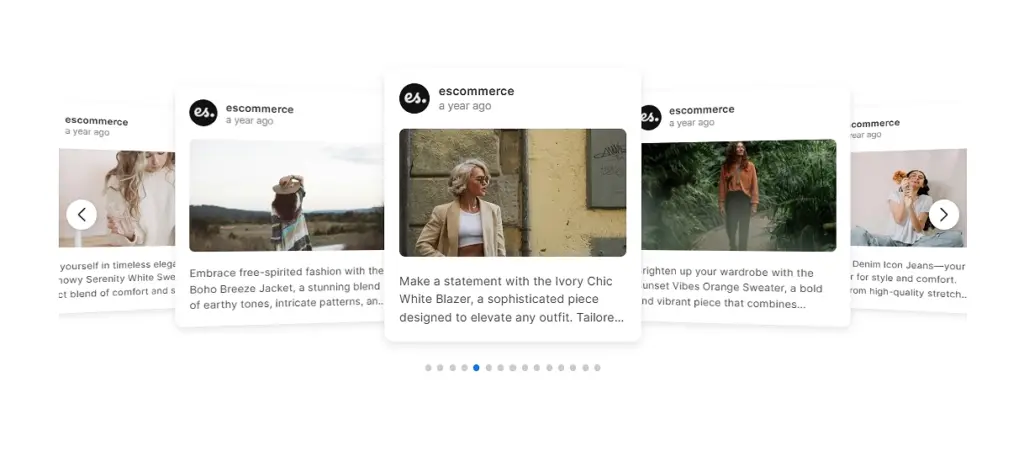
Use the Image Card Feed widget layout to display your strongest Instagram carousel posts in a clean, swipe-friendly widget that keeps visitors scrolling. This layout pulls in your latest multi-slide posts and presents them as polished cards, ideal for lifestyle visuals, product reveals, creator collaborations, and community moments that boost trust and conversions.
2. Social Media Slider
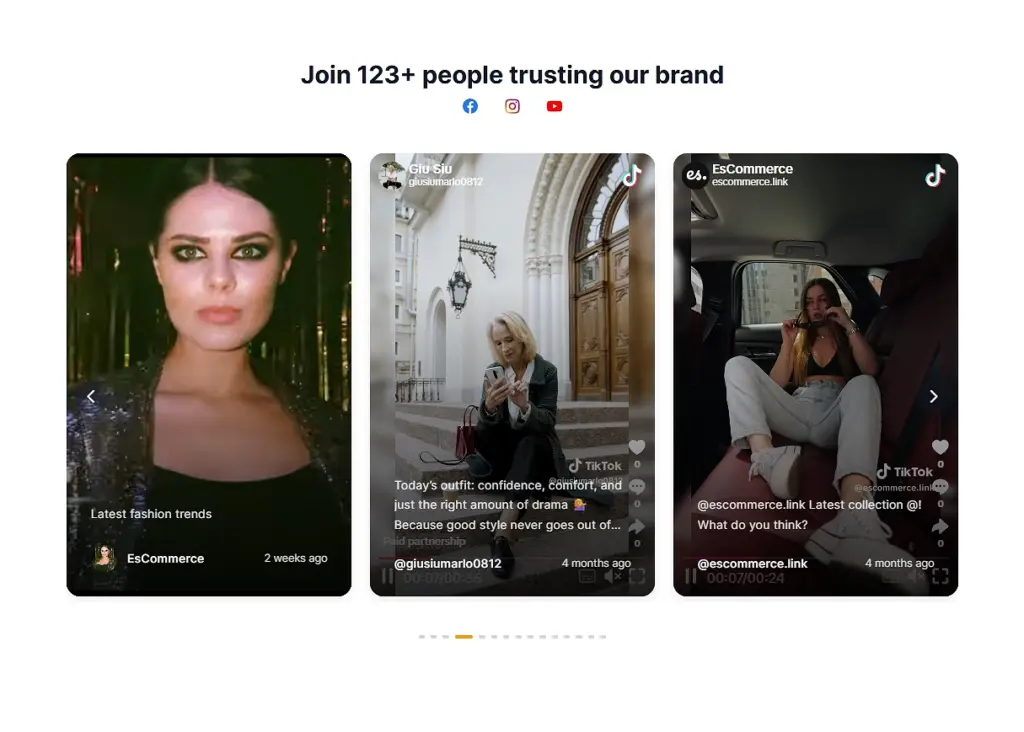
With our Social Media Slider widget, you can highlight authentic customer experiences and real product usage by embedding an Instagram carousel powered by UGC. This widget merges carousel posts, product mentions, and user photos into a dynamic scrollable display that helps shoppers imagine your products in real-life scenarios. With optional pricing tags, captions, and platform markers, it serves as both social proof and a shoppable visual showcase.
3. Social Media Carousel
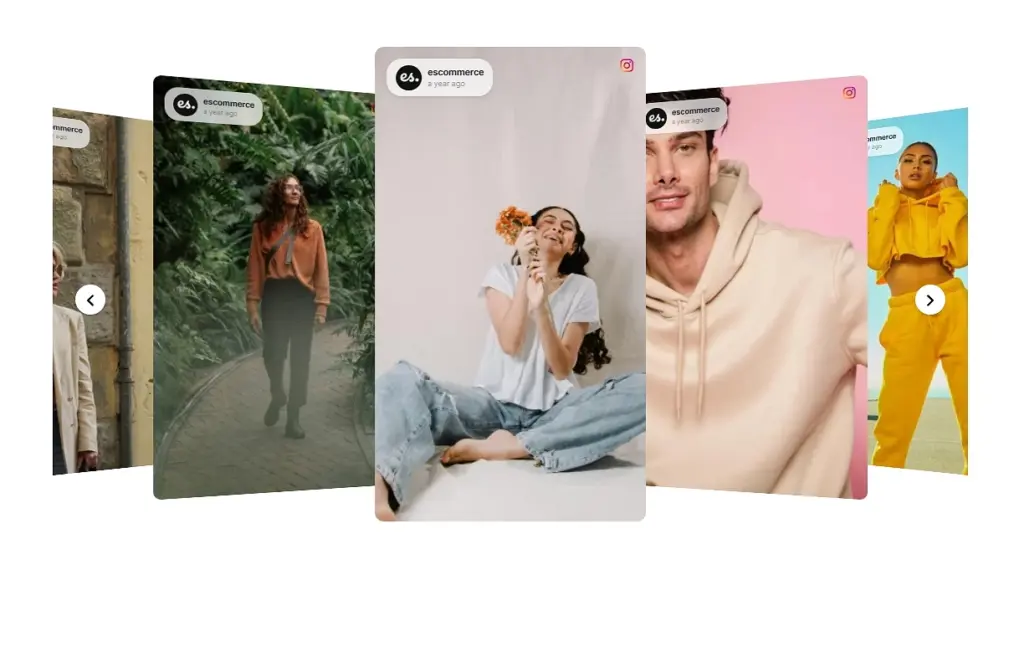
Bring your Instagram feed to life by embedding it as a smooth, swipeable Social Media Carousel on your site. This widget transforms your latest carousels into an interactive slider that adds movement, personality, and fresh content to any landing page.
4. Swipeable Video Cards
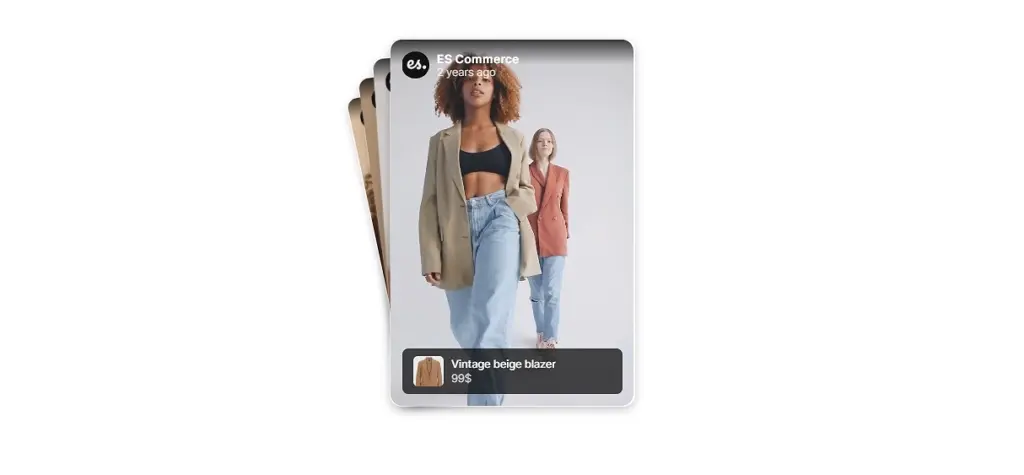
Use Swipeable Video Cards to showcase carousel slides that include short videos in a fun, tap-through experience. This widget adds motion and storytelling to your website, letting visitors explore quick video clips effortlessly while staying fully engaged.
5. Social Media Slideshow
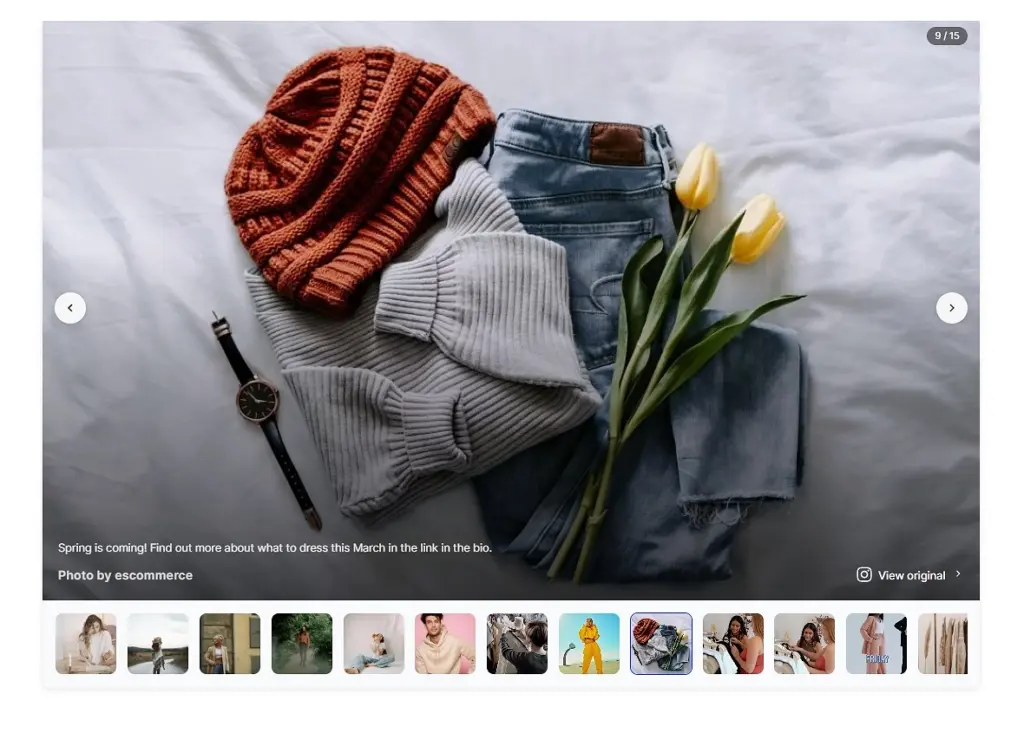
Give your Instagram visuals the attention they deserve with a full-width Social Media Slideshow. Featuring large, high-resolution images paired with an elegant navigation strip, this template offers visitors a cinematic browsing experience, perfect for visually-rich brands.
How to design AI Instagram carousel widgets via EmbedSocial?
Creating an AI-powered Instagram carousel widget only takes a few minutes. Follow the steps below to generate a fully customized, embeddable widget for your website.
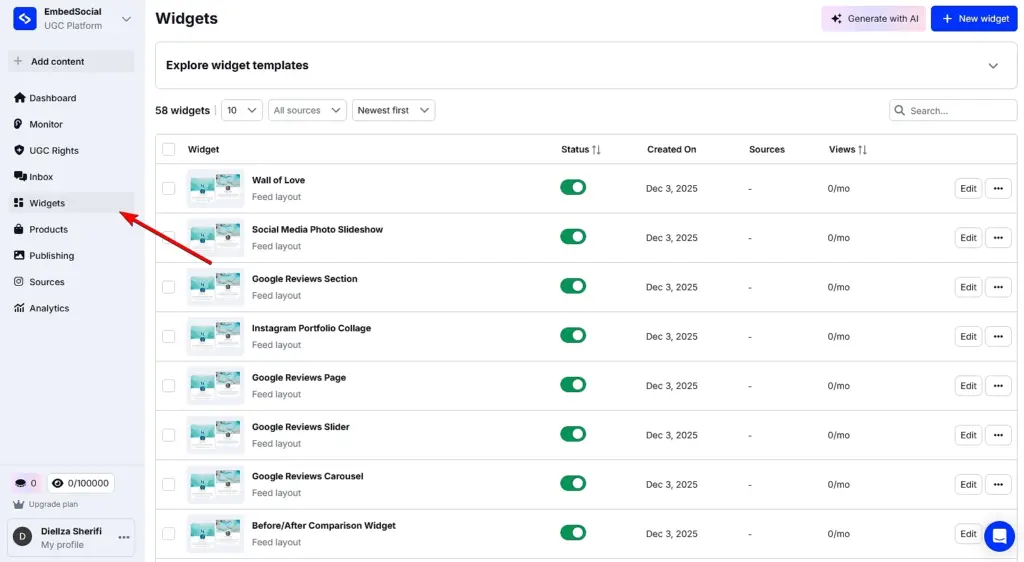
Step 1: Log into EmbedSocial and access the ‘Widgets’ section
Create and sign in to your EmbedSocial account (or start a 7-day free trial) and head to the ‘Widgets’ tab in the left-hand menu:
Step 2: Describe the carousel widget you want to generate
Click ‘Generate with AI’ in the top-right corner. You’ll enter the AI widget generator, where you can type a prompt and/or upload an image to guide the design.
Once your prompt is ready, press ‘Generate’: each prompt uses one credit:
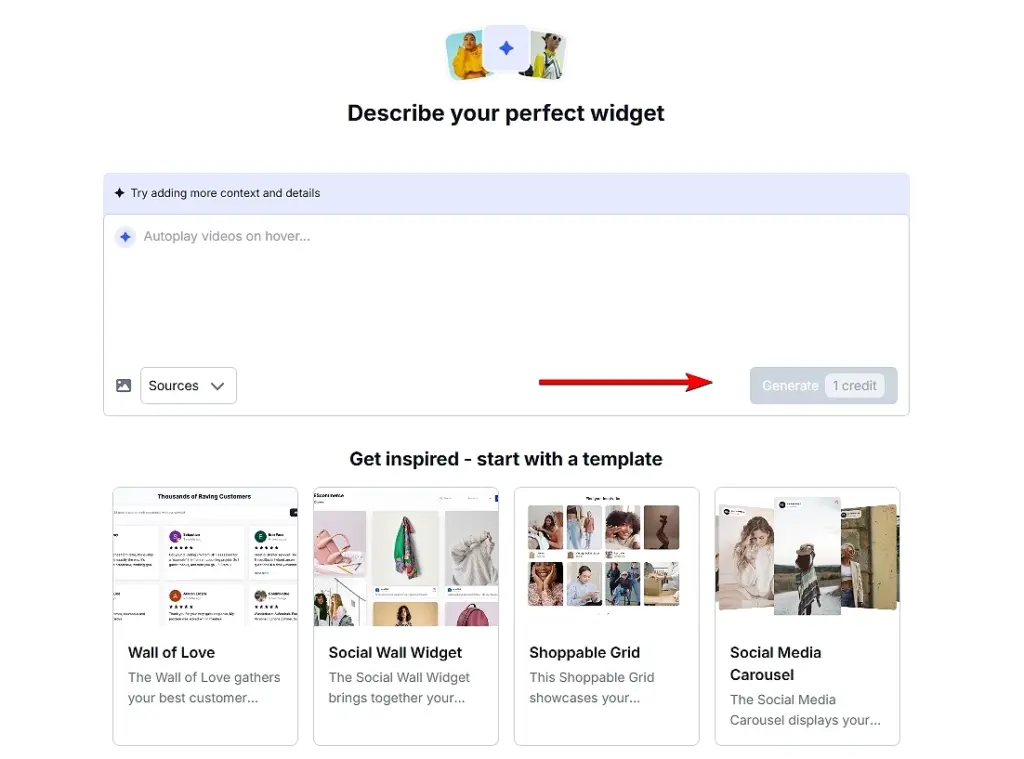
Pro tip: Not sure what to write? Choose from our ready-made templates under the prompt box and tailor them to your needs.
Step 3: Connect your Instagram or UGC sources
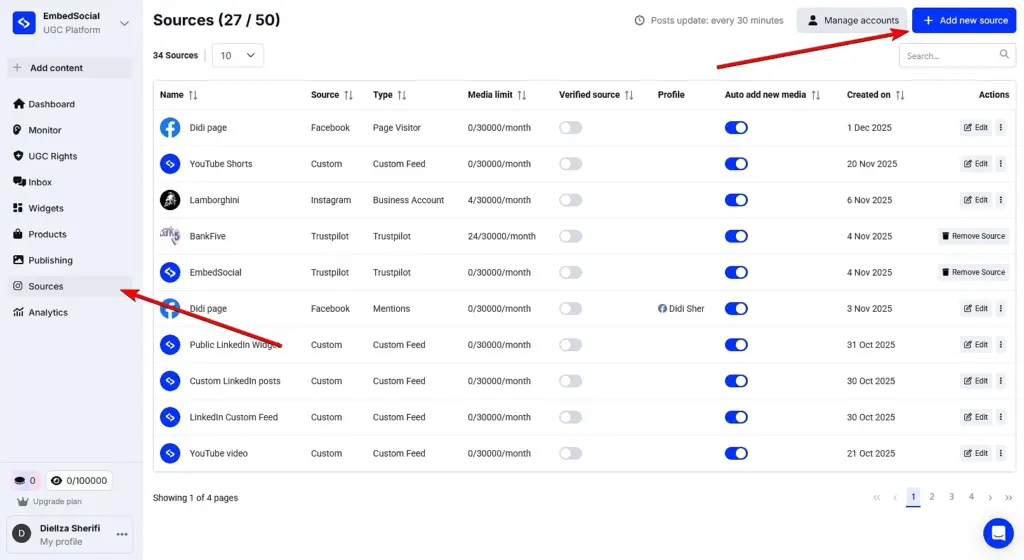
You must connect your Instagram account so you can pull your carousel posts. You can do that under Sources → Add new source. After connecting, you’ll be able to attach all sorts of Instagram content from the top bar of the AI widget editor or from a dropdown list:
Step 4: Refine and customize your carousel widget
If the first version isn’t quite right, you can keep prompting the AI editor to adjust styling, layout, spacing, colors, or content until it matches your brand perfectly:
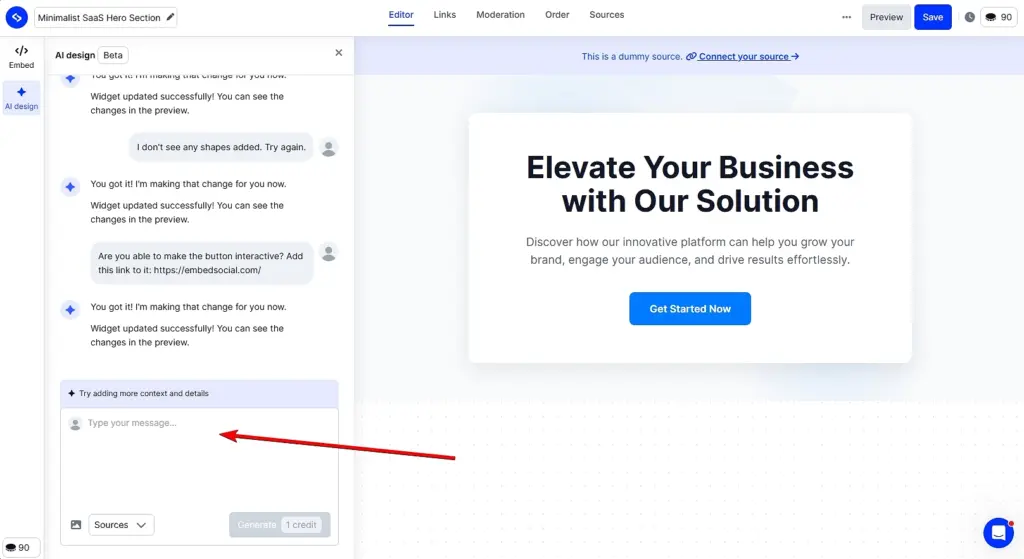
Pro tip: You can add multiple UGC sources anytime by tapping ‘Sources’ in the top bar.
Step 5: Embed the widget on your website
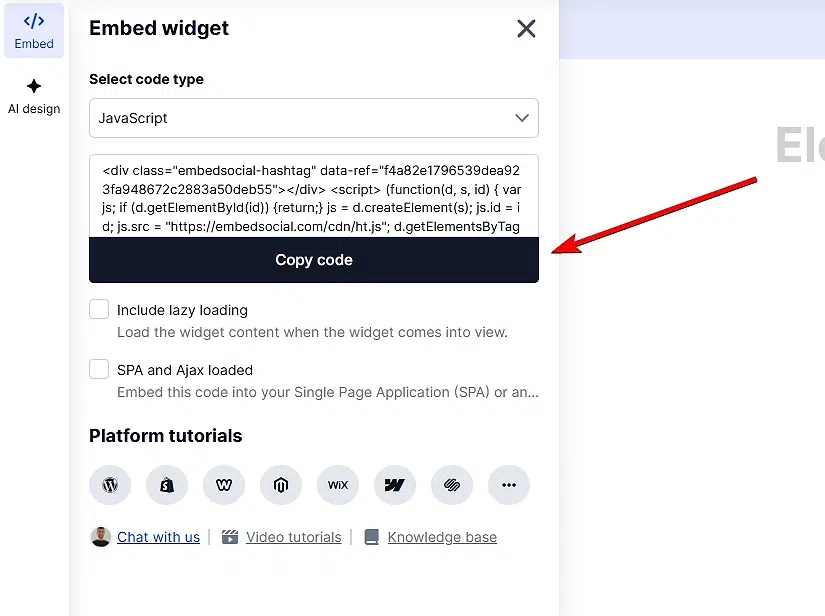
When you’re satisfied with your widget, open the ‘Embed’ tab. Click ‘Copy code’, then paste it into an HTML block on your website and save your page:
Pro tip: Watch out for common design pitfalls such as weak headlines, cluttered visuals, too many calls-to-action, poor responsiveness, inconsistent branding, or messy typography.
Use EmbedSocial’s AI to create high-converting website sections
Designing Instagram carousels is only half the story. The real win comes when you turn that content into on-site social proof that lives beyond Instagram’s feed.
EmbedSocial makes this effortless. With a single prompt, our AI transforms any Instagram carousel into a polished UGC widget you can embed anywhere on your website.
No coding, no manual resizing, no fiddling with layout tools.
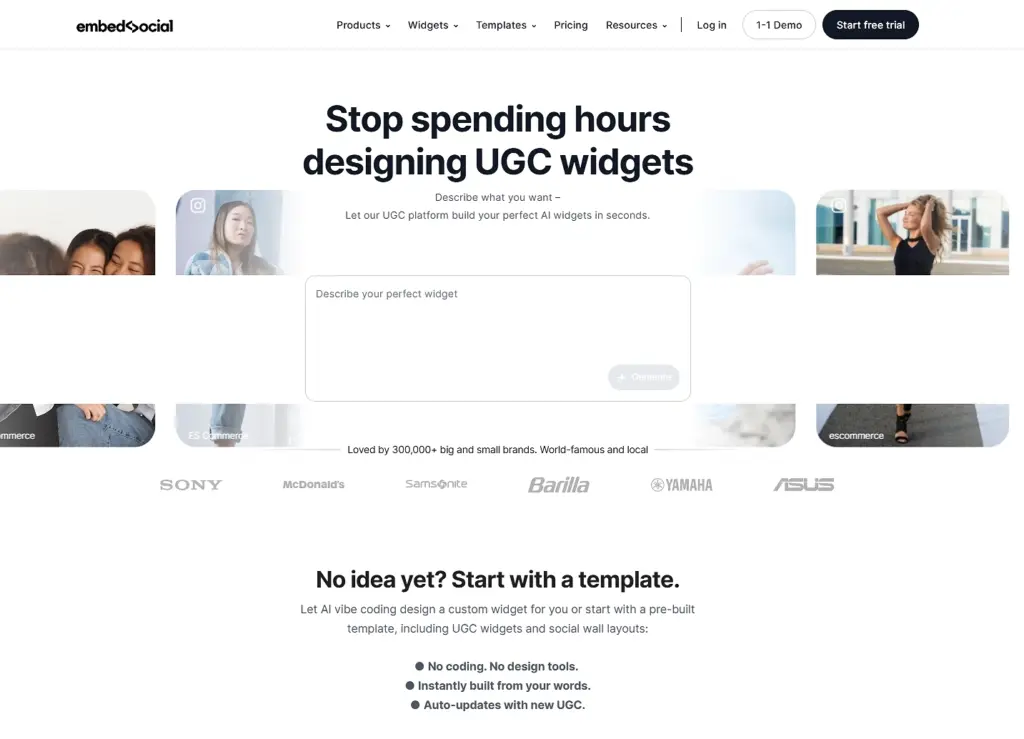
The best part? The widget adapts automatically to your brand. You can change fonts, colors, spacing, add CTAs, switch layouts, or pull in additional UGC without ever opening a design program. Everything stays responsive and consistent across your site.
You can even create multiple variations of the same carousel widget: perfect for A/B testing messaging, placement, or social proof intensity. Also, why not combine different social media accounts in your widget, such as Facebook, TikTok, etc? For layout inspiration, see these image carousel widget examples.
So if you want to pull your social media content via official API connections, either to collect all the images or create one post, EmbedSocial will make it happen!
Pro tip: Add a star rating, a testimonial snippet, or a UGC badge next to your embedded carousel. Light social proof increases credibility without overpowering the design, and EmbedSocial makes it effortless since your reviews and UGC all live in one system.
5 Instagram carousel examples of popular brands
Carousel posts from Instagram have become extremely useful for brands looking to boost their engagement on Instagram. Here’s how the best among them are doing it:
1. Adobe (@adobe) - Sharing the company’s culture and story

Adobe frequently uses carousel posts to showcase design inspiration, tutorials, and tips for its suite of creative tools, from Photoshop to Premiere Pro.
The brand also features talented artists and designers via carousel posts to showcase their work and share their stories, creative processes, and insights.
2. Nike (@nike) - Product showcasing and promoting values

Nike uses carousel posts to feature new product releases, athlete stories, and inspirational campaigns, often highlighting the brand’s values and initiatives.
This way, the brand communicates its brand values, such as promoting diversity and inclusion, supporting sustainability efforts, or championing mental health awareness. These posts help build a positive brand image and resonate with their audience’s values.
National Geographic (@natgeo) – Unique animal photographs

National Geographic always has visually stunning photography and captivating stories to share, which look best in carousel posts on Instagram. That way, they engage with their audience, capture their attention, and share the diverse beauty of our world.
This nonprofit organization is famous for offering scientific facts, covering explorations, documenting them via photos and videos, and sharing them with the public.
4. Ben & Jerry’s (@benandjerrys) – Education on socially responsible topics

Ben & Jerry’s, a famous ice cream brand known for its unique flavors and commitment to social causes, effectively uses carousel posts on their Instagram profile to engage with their audience by educating them on socially responsible topics that concern everybody.
These Instagram carousel educational content examples cover topics from various current subjects, like climate change, abortion rights, voter information, and similar.
5. HubSpot (@hubspot) – Sharing industry statistics and content

HubSpot is a marketing, sales, and customer service software company that shares educational content, industry insights, and company updates via Instagram.
Carousel posts, in particular, enable HubSpot to showcase visually appealing infographics or data visualizations, which makes it a lot easier for their audience to understand trends, statistics, and insights relevant to their industry.
Instagram carousel size guide
Getting your Instagram carousel post size right is the key to crisp visuals, clean layouts, and a seamless swipe experience. Instagram supports multiple aspect ratios, but each serves a different purpose depending on how you want your carousel to appear in the feed.
Here’s a quick breakdown of the optimal sizes:
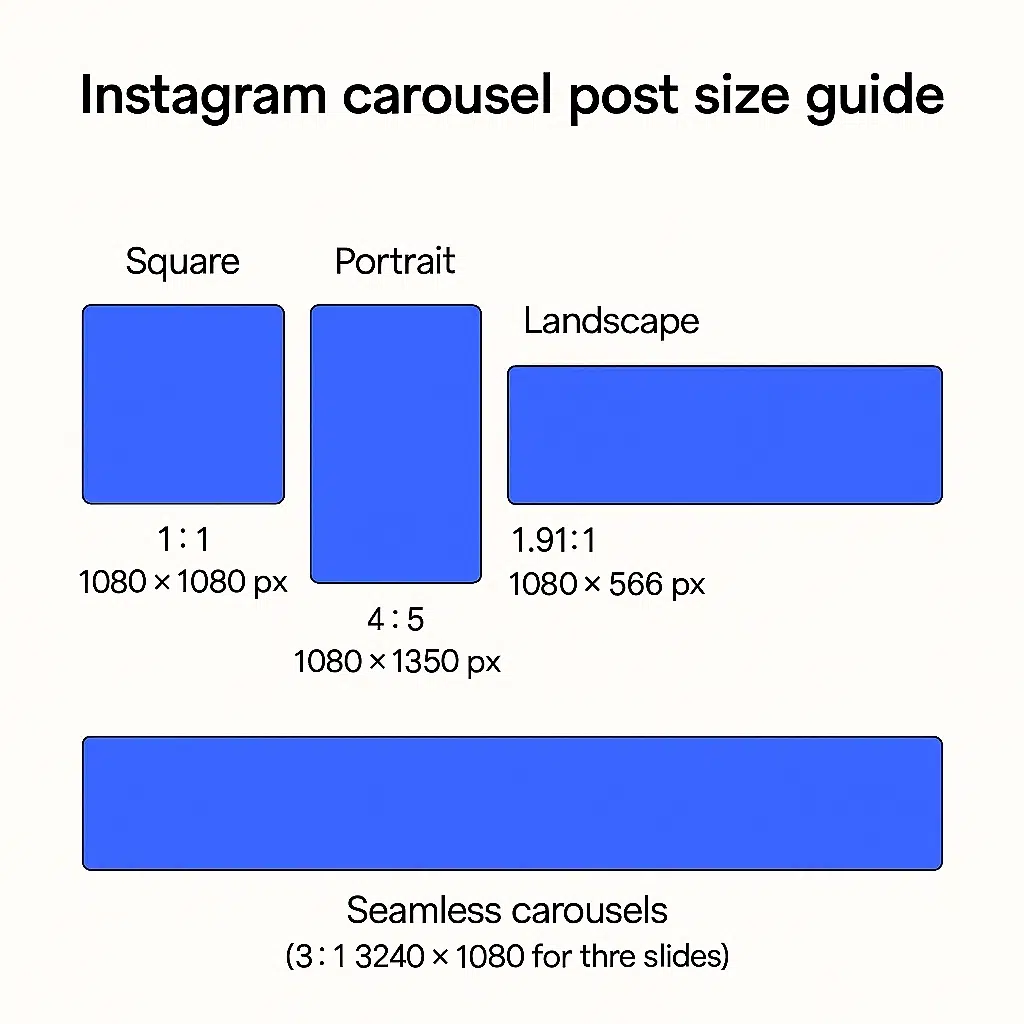
- Square (1:1): 1080 × 1080 px, i.e., the classic carousel size that keeps your grid clean and consistent;
- Portrait (4:5): 1080 × 1350 px, i.e., the most feed-dominant option, taking up maximum vertical space for higher engagement;
- Landscape (1.91:1): 1080 × 566 px, i.e., a wide carousel format that works well for cinematic visuals and horizontal designs;
- Seamless carousels: multiples of 1080 px width, i.e., a single wide image (e.g., 3240 × 1080 px for three equal slices and a smooth swipe effect.
Choosing the right Instagram carousel size ensures every slide stays clear, balanced, and scroll-stopping. Whatever format you go with, keep it consistent!
Pro tip: Always export at 72 DPI in JPG or PNG to keep quality sharp, and avoid heavy compression to prevent blur.
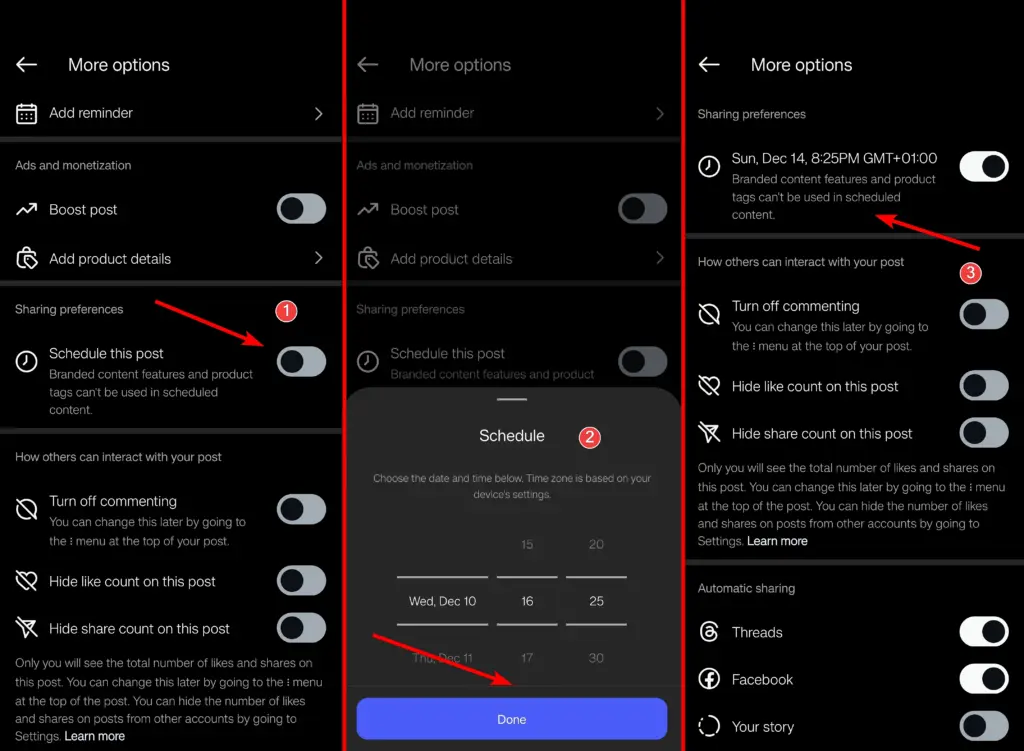
How to schedule Instagram carousel posts?
When creating a new carousel post on Instagram, you also have the option to schedule it so that it syncs with any of your product, service, or campaign launches.
Here’s how to do it in a few simple steps
- Tap ‘More options’ while at the ‘New post’ page;
- Toggle the ‘Schedule this post’ option;
- Choose the time and date you want the post to go live;
- Go back to the ‘New post’ page and tap ‘Schedule’.
Note: This option is only available for Instagram professional accounts.
Conclusion: Boost your results by turning every carousel into a website asset!
Instagram carousels are great for earning attention, driving engagement, and delivering real value. You just need the right structure, visuals, and storytelling, and above, I help you with all those things, choose a template and use EmbedSocial’s AI widget generator!
Creating a post that will showcase the images in a carousel slider is easy, and you can do it within the Instagram app by selecting multiple photos or videos for your post.
Then, after creating and posting your Instagram carousel, you can greatly extend its lifespan beyond the platform by converting the post into a UGC website widget.
That way, you can showcase your Instagram carousels on your website, boost your social proof, and keep your best content working long after it leaves the feed.
Create the carousel once. Let AI help it shine everywhere.
Try EmbedSocial’s AI widget editor and turn your next Instagram carousel into an embeddable UGC widget in seconds.






![11 Best Social Media Widgets for Websites [+Top Use Cases]](https://embedsocial.com/wp-content/uploads/2023/03/Social-Media-Carousel-widget-template.webp)