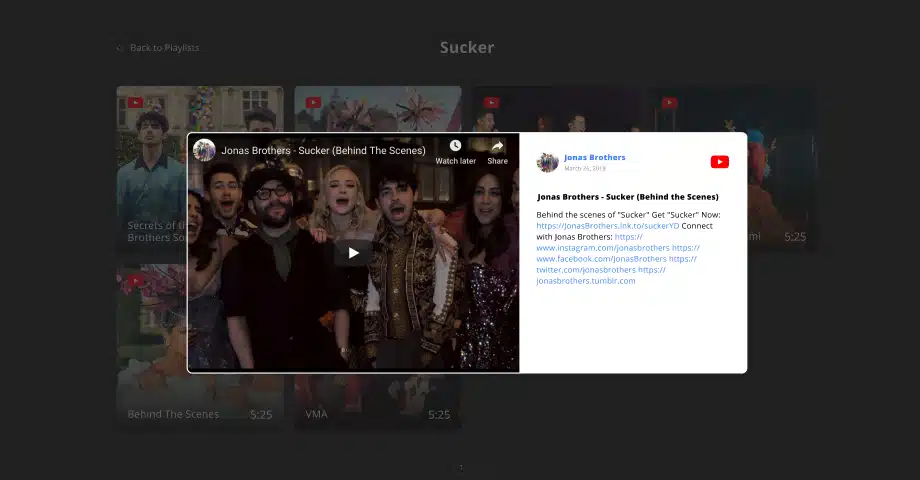

YouTube videos are becoming an essential part of any business marketing strategy, so you should really start embedding them on your websites and social media platforms.
That said, I have just the right social media aggregator that will help you with that. EmbedSocial can easily collect, moderate, and showcase your YouTube content via website widgets.
Not convinced? Watch this interactive video to see just how easy it is:
Options to embed YouTube channel
There are two methods to embed your YouTube channel:
- Manual: Copy and paste the individual video embed codes provided by YouTube
- Automatic: Use a third-party tool or plugin that has direct integration with YouTube
If you want to go with the first option, just follow these steps:
- Find the YouTube video in question and click its ‘Share’ option.
- Click on the ‘Embed’ option (first in line).
- Copy the provided code (you can select your start time).
- Paste the code in a separate page on your website.

This is somewhat straightforward, but the downside is that you have to repeat the above steps for each individual video you would like to embed on your website.
That said, brands and agencies need to scale the process to save time and effort. I offer you a better method for embedding a YouTube channel: use a third-party UGC platform like EmbedSocial.
Best of all, we use a direct YouTube API connection to create gorgeous YouTube widgets!
Full guide: Embed a YouTube channel in 6 simple steps
Before you start, if you are not a user yet, register for an EmbedSocial account, and you are ready to go. Then, just follow the steps below to set up your YouTube website widget:
- Design your YouTube channel widget
- Connect your YouTube channel content
- Choose an AI template for your YouTube widget
- Further customize your YouTube website widget
- Copy the embeddable widget code
- Paste the code on your website
Step 1: Design your YouTube channel widget
First things first, you have to enter your widget prompt in our AI widget editor. You can be descriptive so you get the exact look you’re looking for. Note: you need 1 credit for each prompt:

Step 2: Connect your YouTube channel content
Once your new widget loads up, it’s time to connect your YouTube channel via the ‘Sources’ tab in the editor. Note that you may be prompted to sign into YouTube the first time around:

Once you approve the connection, just tick the YouTube source you’d like to add:

Step 3: Choose an AI template for your YouTube widget
Now, I would suggest you pick one of our ready-to-go AI widget templates, like the YouTube Channel Feed Widget template, as we offer several alternatives for each different platform. Then you can customize them further if you’d like:

Step 4: Further customize your YouTube website widget
To tweak the look of your widget, just navigate to the ‘AI design’ tab and keep entering prompts to change any element you’d like from the widget text to its colors:

Step 5: Copy the embeddable widget code
Once you’re done with everything, simply go to the ‘Embed’ tab (top-left corner) and tap ‘Copy code’, which will put the widget code into your copy clipboard:

Step 6: Paste the code on your website
Last but not least, you have to open the specific website page in your corresponding editor, add a custom HTML box, paste the widget code, and save the page.
Here’s how to complete that process across all popular website builders:
Video guide: Embed YouTube Channels by following this guide
Instead of going through the steps above, watch this brief video guide on embedding YouTube channels:
Conclusion: Embedding a YouTube channel offers a lot of value for your customers!
Embedding a YouTube channel works best when it’s treated as a system, not a one-time embed. That’s where social aggregator tools like EmbedSocial change the game.
With EmbedSocial, your YouTube channel stays automatically updated, loads fast, and adapts to your site’s design without any coding expertise or custom codes. New videos appear instantly and automatically, layouts stay consistent, and your content never goes stale.
More importantly, you can place your videos where your conversions happen, such as product pages, landing pages, and blogs, all without sending users back to YouTube. That means higher engagement, longer sessions, and better use of the content you already create. For more layout ideas, read this guide on how to embed a video gallery on your website.
So, connect your YouTube channel once, reuse it everywhere, and let EmbedSocial turn your YouTube content into a permanent growth asset.




![11 Best Social Media Widgets for Websites [+Top Use Cases]](https://embedsocial.com/wp-content/uploads/2023/03/Social-Media-Carousel-widget-template.webp)
![How to Embed Testimonials on Website in 2026 [2 Methods + Tips]](https://embedsocial.com/wp-content/uploads/2022/11/testimonials-dark-single-slider.jpg.webp)
