

Threads is getting increasingly more popular with each passing day, and will likely surpass X (Twitter) very soon as the go-to discussion platform in the world.
As such, Threads is becoming an important social media asset for brands and companies, as they seek to engage their audience on every meaningful platform.
So, we’ve designed the Threads widget to collect and embed Threads feed posts from different accounts and mentions, as well as those related to specific keywords.
You just need the right social media aggregator, like EmbedSocial, that connects to your Threads account via the official API and syncs all your content into embeddable widgets.
Here’s an interactive video showcasing the process of embedding your Threads feed on your website:
What is a Threads feed widget?
A Threads feed widget displays a stream of conversations, updates, and interactions from the Threads platform on your website. Plus, it comes with advanced customization and moderation options that help users get and update the right content on their website at all times.
‘Threads feed widget’ definition
That’s it. Once embedded, your Threads widget will update automatically once a day with new posts. Here’s what the widget can look like when embedded on your website pages:
Please note that if you need customization options or options to add more social media networks in the same feed, check the social media aggregator features as part of our bigger platform.
Full guide: How to embed Threads widget on your website quickly?
In order to embed your Threads feed on your website, you need to have an EmbedSocial account. Then, you have to follow six simple steps to create and embed your widget:
- Prompt the AI to create your widget
- Connect your Threads source
- Choose a widget design template
- Refine design elements with AI
- Copy the embeddable widget code
- Paste the widget code on your website
Step 1: Prompt the AI to create your widget
First things first, you have to write a descriptive prompt about what you want your widget to look like. Note that each prompt utilizes 1 credit (you can get more at any time):

Step 2: Connect your Threads source
Next, you have to connect your Threads source, which you can do straight from the editor:

After finalizing a few login steps, granting relevant access to EmbedSocial, you will be able to pick your Threads source (one or several) straight from the ‘Sources’ page:

Step 3: Choose a widget design template
Why not choose a specific ready-to-go template from our library? We offer lots of different widget templates for all sorts of use cases. Check them out:

Step 4: Refine design elements with AI
If you are not happy with the widget look, you can always change it up by adding more prompts:

Step 5: Copy the embeddable widget code
Once you are done with the widget design, simply navigate to the ‘Embed’ tab and click ‘Copy code’:

Step 6: Paste the widget code on your website
Last but not least, head on over to your website builder, open the page where you want the widget to appear, add a custom HTML box, and paste the widget code inside.
Here’s how to complete the process across the most popular website builders:
Video guide: How to embed Threads feeds easily?
Would you rather watch a video guide on embedding Threads posts? Then, this is for you:
How to embed a single Threads post via the native option?
Note: New embed option available for the desktop Threads app.
The native option to embed a Threads post is available now, and you can access it like this:
- Go to Threads.net and find the post you want to embed.
- Click on the arrow icon below the post and click ‘Get embed code’:
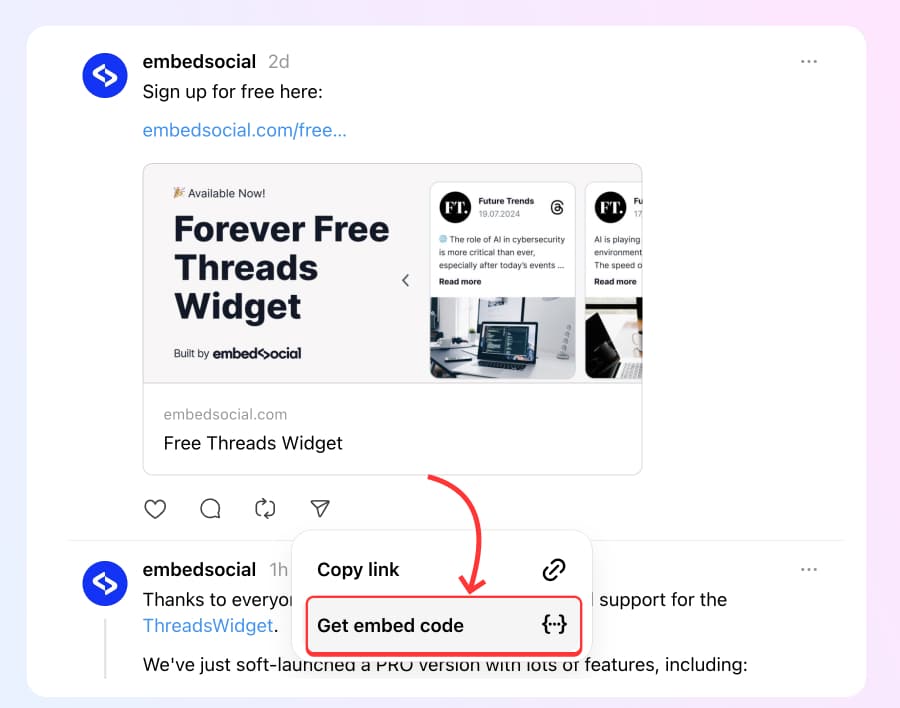
- From the pop-up, click Copy.
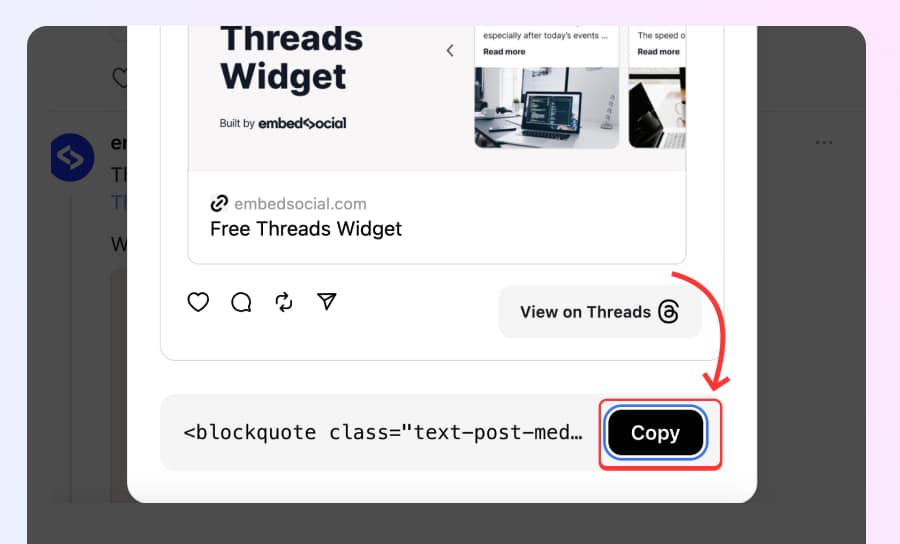
- Go to your website and paste this code into an HTML element.


Here is a demo of an embedded Thread here in this blog post:
[
Post by @embedsocial
View on Threads
While the above process works well for single posts, you won’t be able to use it for displaying multiple posts in a single Threads feed widget. To do this, use some of the options below:
How to create and embed a custom Threads feed?
In case you want to create a widget with your Threads but add the data manually, follow these steps via the EmbedSocial platform:
Step 1: Create a custom Threads source
To create a custom source, Threads where you will upload the Threads icon. To do this, follow the steps:
- Go to Sources and click Custom.
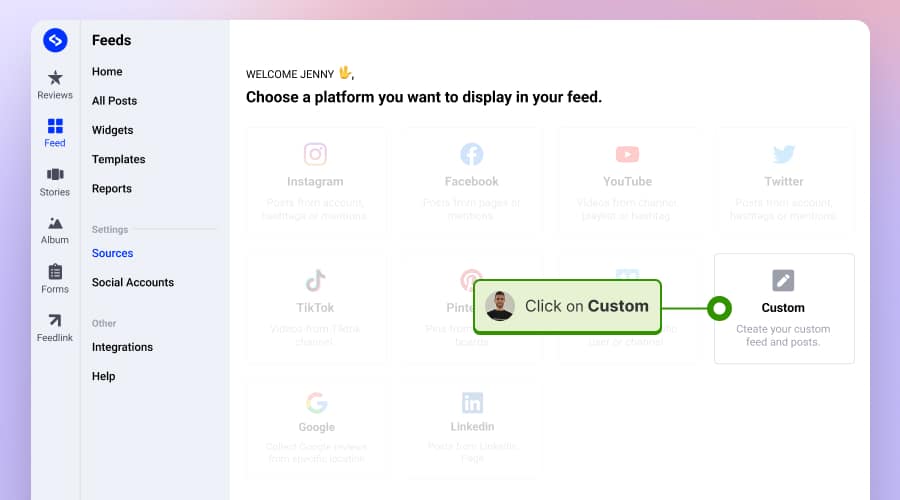
- Type the name ‘Threads’ and click ‘Next’
- Here, upload the Threads icon and add the other source details


This setup will help you to display a logo next to each post that you will add to this source.
Step 2: Manually add Threads posts in the source
Now, manually add the Threads to this source. Here are the steps:
- On the source page, click Add post.
- Input the post text, author, and link.
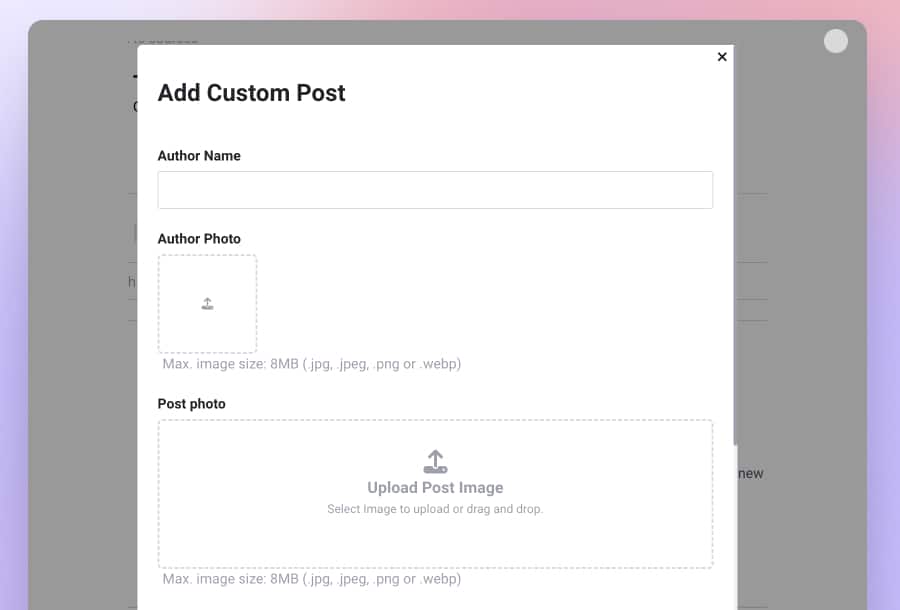
- Click Submit, and the post will be listed on your source page.

Repeat this with all Threads you want to display on your website.
Step 3: Create the Threads widget
Once you finish adding the Threads, just click Create widget, and you will be redirected to the widget editor. Here, you can customize the widget to display as a slider, feed, or popup layout. Also, do other more advanced customizations.
Once you are done, you can get the widget code by navigating to the Embed tab and clicking on Copy code as shown below:

Step 4: Embed the Threads widget into your website
Finally, you can display the Threads feed on your website. Depending on which web builder you are using, just make sure to paste the widget code into the location where you want to display the code.
Below, you can see these instructions for a WordPress website:
- Log in to your WordPress dashboard and open the page where you want to embed Threads.
- Click the +icon, search, and select Custom HTML.
- Paste the Threads widget code, as presented in the image below:

How to embed Threads on a link-in-bio page
Link in bio pages are tools that showcase your latest social media activity in one place. We made it possible to embed your Threads feed into your Feedlink page very easily.
Before you start, just go to your Threads post and copy the URL from the browser bar.
Next, follow the steps to paste the URL into your link in bio page on Feedlink:
- Sign up for a free Feedlink account.
- Go to your Feedlink page editor, click Explore, and choose Threads.
- A block will appear where you can paste the Thread URL.
- The Threads post will immediately appear on the page.
Here is a walkthrough of the steps:




![11 Best Social Media Widgets for Websites [+Top Use Cases]](https://embedsocial.com/wp-content/uploads/2023/03/Social-Media-Carousel-widget-template.webp)
![How to Embed Testimonials on Website in 2026 [2 Methods + Tips]](https://embedsocial.com/wp-content/uploads/2022/11/testimonials-dark-single-slider.jpg.webp)
