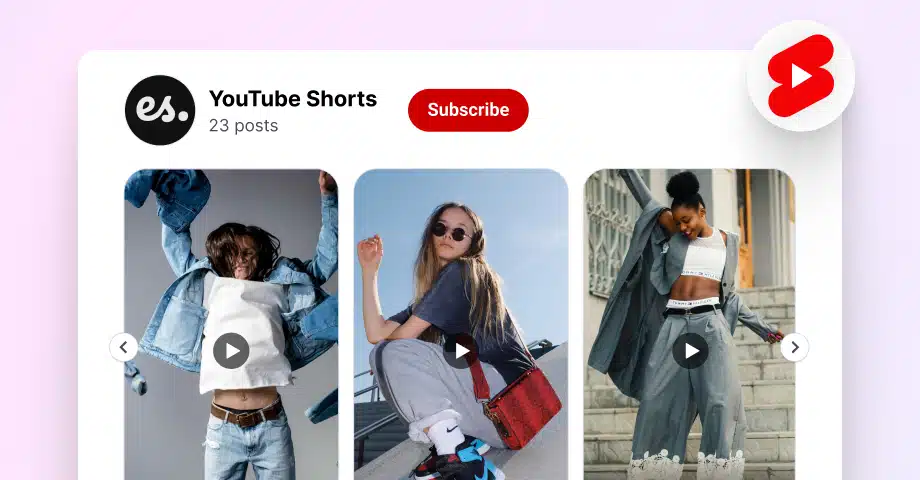

Embedding YouTube Shorts on your website is now easier than ever. You no longer need playlists, hacks, or other workarounds to display Shorts the right way.
Short-form video drives attention, time on page, and conversions, but most websites still struggle to embed YouTube Shorts cleanly, keep them updated, or make them fit their design.
In this guide, I’ll show you how to do that using EmbedSocial’s YouTube Shorts widget, which lets you pull Shorts directly from your YouTube channel, auto sync new videos, and display them in a customizable widget on WordPress or any other website builder
What are YouTube Shorts?
YouTube Shorts are short-form, vertical videos designed for fast consumption and high engagement. They’re created primarily for mobile viewing and typically run up to 60 seconds but can be up to three minutes long, making them ideal for quick storytelling, product highlights, tutorials, and behind-the-scenes content.
Unlike traditional YouTube videos, Shorts have their own dedicated Shorts feed, where they benefit from algorithmic discovery and repeated exposure, which makes them a powerful format for reaching new audiences and keeping existing ones engaged.
As such, Shorts may offer more than visibility to businesses. So you have to look into how to embed YouTube Shorts on your website to extend their lifespan beyond the app.
With tools like EmbedSocial, you can do exactly that. You can pull YouTube Shorts directly from your channel and display them in a responsive, on-brand YouTube widget, allowing you to showcase fresh video content without manually managing individual embeds.
Pro tip: You can combine your YouTube Shorts with other YouTube content:
Once done, here’s what your YouTube Shorts widget can look like:

Use this YouTube Shorts widget
Is there an official method to embed YouTube Shorts?
Unlike standard YouTube videos or when embedding TikTok videos, Shorts do not come with a native embed code, iframe option, or “Embed” button when you click Share.
What YouTube provides is only a shareable Shorts link that does not render a viewable player on your website. So, if you’re looking for a reliable or scalable way to embed YouTube Shorts on a website, check out the solution below. It includes a consistent design and automatic updates.
Best of all: You can pull and embed all your YouTube Shorts at once!
Full guide: How to embed YouTube Shorts on a website?
The solution to embedding YouTube Shorts on your website is to use a social media aggregator like EmbedSocial, which can collect your UGC and add it anywhere you’d like.
To do so, it uses website widgets that will keep updating automatically, and setting them up is a breeze, especially with our modern AI UGC widget editor, which is prompt-based.
Just follow these steps to set up your YouTube Shorts widget:
- Add your YouTube Shorts widget prompt
- Connect your YouTube Shorts account
- Select a pre-set template (if you want)
- Further customize the template via AI prompts
- Copy the YouTube widget embed code
- Paste the code in your website editor
However, before doing anything else, you must create a free EmbedSocial account. Then, you just log in and follow these steps (you’ll be done in minutes):
Step 1: Add your YouTube Shorts widget prompt
Firstly, head over to the ‘Widgets’ section and tap ‘Generate with AI’ in the top right corner. This will take you to our advanced AI widget editor, where you have to input your widget prompt.
You can write something like: “Create a modern YouTube Shorts widget in a carousel format.”:

Step 2: Connect your YouTube Shorts account
Next up, you have to tap ‘Connect your source’ (top ribbon) to head on over to the ‘Sources’ section, where you can provide your specific YouTube Shorts account:

Step 3: Select a pre-set template (if you want)
If you so choose, you can also start with one of our pre-set widget templates and then further customize it via text prompts. For instance, you can choose the YouTube Video Carousel:

Step 4: Further customize the template via AI prompts
It’s very easy to get the perfect widget look, you just have to describe what you want added, removed, or changed, such as changing the color of the cards’ background:

Step 5: Copy the YouTube widget embed code
Once you have the perfect look, head on over to the ‘Embed’ tab (top-left corner), tap ‘Copy code’ to get the embeddable widget code, and head on over to your website builder:

Step 6: Paste the code in your website editor
Last but not least, you will have to paste the code into your website builder. You can do so on any page you just by adding an empty HTML box/element. Here’s how to do it across all website builders:
See a live YouTube Shorts widget demo
Want to see how YouTube Shorts look when embedded on a real website?
This Modern YouTube Shorts Slider displays each Short in a phone style frame, making the feed feel native to vertical video while still fitting neatly into a clean website layout. It shows multiple Shorts in a scrollable row, supports titles under each video, and keeps the section light, modern, and easy to browse.
You can use it on landing pages, product pages, creator websites, or campaign pages where short form video needs to feel fast, visual, and polished. The widget is also mobile friendly, customizable, fast loading, and can auto sync with your YouTube source.
Explore the live YouTube Shorts widget demo below and see how it can fit your website.
Start with this YouTube Shorts widget.
Why embed YouTube Shorts widgets?
Embedding YouTube Shorts on your website is about turning short-form content into a measurable business asset in addition to adding an interactive layer for visitors. Here are all the benefits:

- Increase on-site engagement: YouTube Shorts are designed to grab attention fast, making them ideal for reducing bounce rates and keeping visitors scrolling longer;
- Boost SEO value: pages with embedded video tend to perform better in search, and YouTube content benefits from Google’s native ecosystem;
- Enhance the user experience: short, vertical videos break up text-heavy pages and make your site feel more dynamic and modern;
- Showcase products and services visually: Shorts let you demonstrate features, use cases, or results in seconds, often more effectively than static images;
- Build trust through social proof: embedding Shorts from your own channel or creators helps reinforce credibility and authenticity via social proof;
- Reuse content across channels: embedding YouTube Shorts on your website extends the lifespan of videos you’ve already created for YouTube.
When YouTube Shorts are embedded properly via EmbedSocial you can keep them synced automatically, and they will become a consistent source of fresh, engaging content.
Embedding YouTube videos on website: 9 Expert opinions
Here is what 9 thought leaders had to say about using YouTube videos for marketing purposes:
Top-Placed Videos Boost Watch Time and Clicks
At PlayAbly, we started putting YouTube videos right on our product pages and people started sticking around longer. We tested where to put the player and found that if the video was the first thing people saw, more of them would watch it all the way through. We always add captions and a custom thumbnail now. That gets more clicks and helps people who can’t hear the audio.
If you have any questions, feel free to reach out to my personal email
John Cheng, CEO, PlayAbly.AI
-——————————————
Top Videos and Transcripts Drive Global Engagement
I always put a YouTube video right at the top of my course pages. It makes a huge difference. When we added video intros in Spanish and French, visitors from those countries started sticking around way longer. They just got what we were offering. My advice from running these sites is simple: put the video where people see it first, include a full transcript, and always add captions.
If you have any questions, feel free to reach out to my personal email
Yoan Amselem, Managing Director, German Cultural Association of Hong Kong
-——————————————
Fix Load Speed, Pair Videos With Text
We use a lot of YouTube videos because people actually watch and share them. Honestly, our first try was a mess and the site practically crashed. But we got the loading speeds figured out. Now we put the video next to the relevant text and stick a link right under it. It’s simple, but it keeps people from leaving right after they watch.
If you have any questions, feel free to reach out to my personal email
Soban Tariq, Founder, Game of Branding
-——————————————
Embed Videos, Answer Questions, Check Page Speed
Here’s what I’ve learned from running marketing: putting YouTube videos on pages works, especially for stuff that’s hard to explain. Visitors just stay longer. Make sure the video actually answers their question, and use a clear title and transcript. We use lazy loading so our site doesn’t slow down. Just check your page speed after you embed one before you go adding them everywhere.
If you have any questions, feel free to reach out to my personal email
Yarden Morgan, Director of Growth, Lusha
-——————————————
Lazy Load and Schema Elevate B2B Engagement
I work on B2B sites and always use YouTube videos to show products in action. Visitors stick around longer watching a walkthrough than they do looking at screenshots. My trick is to lazy load the videos and use structured data for SEO. This won’t solve every problem, but it does a solid job of getting people to engage and helping them find you in search results.
If you have any questions, feel free to reach out to my personal email
Dan Tabaran, CEO, dynares
-——————————————
Limit Videos, Prioritize Speed, Remove Distractions
We used to put a lot of YouTube videos on our Together site, for new features and customer stories. The hard lesson we learned? Page load speed. We fixed that with async loading and a max of two videos per page. Now we only add videos that directly support the page’s message. Anything else is just a distraction.
If you have any questions, feel free to reach out to my personal email
Matthew Reeves, CEO & Co-founder, Together Software
-——————————————
Relevant Demos Retain Visitors, Schema Boosts Visibility
We started embedding YouTube videos on our SaaS landing pages and people stick around way longer. They actually watch the product demos instead of bouncing. The trick is keeping the video super relevant to the page content. Also, if you can add schema markup, do it. It helps with getting seen in Google.
If you have any questions, feel free to reach out to my personal email
Bennett Heyn, Founder/CEO, Backlinker AI
-——————————————
Short Demos Cut Questions, Thumbnails Aid Accessibility
We started adding short demo videos at Fotoria to show how our AI headshots work, and people seem to get the hang of it faster now. I’m getting fewer questions about how to use it. We embed straight from YouTube to keep the site fast, but I still check how those external scripts affect load times. If you do this too, don’t forget to customize your thumbnails and add short text descriptions for accessibility.
If you have any questions, feel free to reach out to my personal email
Edward Cirstea, Founder, Fotoria
-——————————————
Brief Walkthroughs Win Leads on Complex Jobs
Adding YouTube videos changed things for us at Truly Tough Contractors. For complex jobs like solar or roofing, a short video explains everything better than a wall of text. Our walkthrough videos let clients see the process, so they know what they’re getting into. We get better leads and people stay on the page longer. Just use a custom thumbnail and keep it brief, because nobody wants to wait for a slow video.
If you have any questions, feel free to reach out to my personal email
Joseph Melara, Chief Operating Officer, Truly Tough Contractors
Where to display your YouTube Shorts widget?
Where you place embedded YouTube Shorts matters just as much as how you embed them, as strategic placement turns them into a conversion, engagement, or trust-building asset.
Here are the best locations on your site for YouTube Shorts:

Homepage
Your homepage sets the tone for your entire brand. Embedding YouTube Shorts here can instantly show visitors what you’re about without asking for a big time commitment.
Pro tip: Place a Shorts widget above the fold or near key value propositions so visitors encounter video before scrolling fatigue kicks in.
Product pages
Product pages are decision-making zones. Embedded YouTube Shorts work especially well here because they communicate value quickly, how a product looks, works, or solves a problem.
Pro tip: Use Shorts that demonstrate real usage or outcomes, not polished promos. Authentic clips convert better than scripted videos.
Landing pages
Landing pages are built for focus and action. Embedding YouTube Shorts on these pages can reinforce your message and reduce friction before a user converts.
Pro tip: Match the Short’s message to the campaign intent. One Short per landing page usually outperforms multiple competing videos.
Blog posts
Blog content benefits from visual breaks. When you embed YouTube Shorts inside articles, you make complex ideas easier to digest and keep readers engaged longer.
Pro tip: Embed Shorts immediately after a key section or takeaway, not mid-paragraph, to maintain reading flow.
Sidebar or footer
Sidebars and footers offer persistent visibility across your site. Embedding YouTube Shorts here keeps your video content working in the background without disrupting the main experience.
Pro tip: Use evergreen Shorts in these areas, content that stays relevant regardless of page context or timing.
Conclusion: Turn YouTube Shorts into a growth asset
Embedding YouTube Shorts on your website is now a strategic way to bring short-form video where it actually drives results. Don’t let this content live only inside YouTube.
By choosing the right approach to embed YouTube Shorts, you can turn fast, vertical videos into always-on engagement blocks that support SEO, product discovery, and user trust. The key is avoiding manual embeds that break, go stale, or clash with your site’s design.
With EmbedSocial, you can embed YouTube Shorts directly from a channel, keep them updated automatically, and display them in a format that fits any website or CMS.
The result is less maintenance, better visibility, and more value from existing content.




![11 Best Social Media Widgets for Websites [+Top Use Cases]](https://embedsocial.com/wp-content/uploads/2023/03/Social-Media-Carousel-widget-template.webp)
![How to Embed Testimonials on Website in 2026 [2 Methods + Tips]](https://embedsocial.com/wp-content/uploads/2022/11/testimonials-dark-single-slider.jpg.webp)