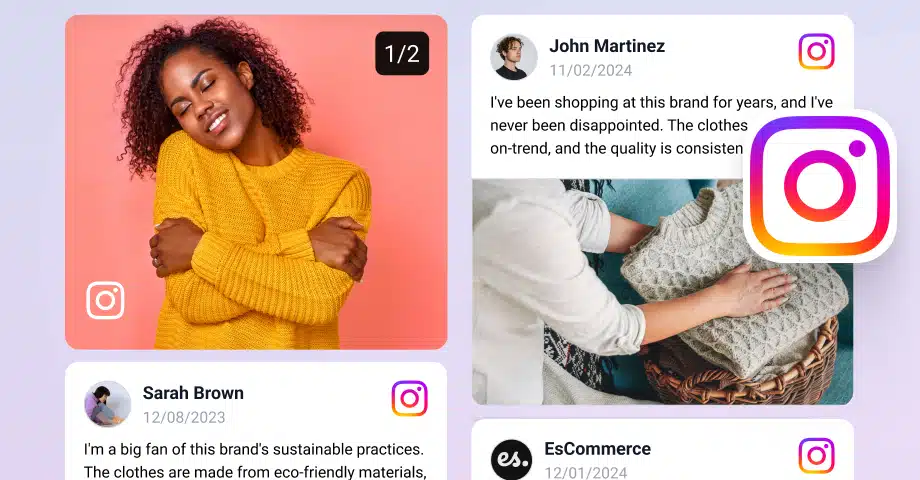

Social media feeds have recently become a core component of any website, especially those from popular networks like Instagram.
After all, when you embed an Instagram feed on your website, you enhance the reach of both your website and your social media accounts.
Plus, embedding an Instagram feed for website pages couldn’t be easier!
All you need is an easy-to-use Instagram widget that doesn’t require coding knowledge to pull all your posts and display them on your sites.
Here’s how you can do that using our free Instagram widget:
Full guide: How to embed Instagram feed on website for free?
Before embedding Instagram feeds on your website, you have to create a free EmbedSocial account. Then, you can follow these steps to get your new widgets up and running:
- Step 1: Define your widget with AI
- Step 2: Connect your Instagram source
- Step 3: Select and apply a template
- Step 4: Further customize the template with AI prompts
- Step 5: Copy the widget embed code
- Step 6: Paste the code in your website editor
Step 1: Define your widget with AI
Describe your ideal widget via the AI prompt. The AI builder will then interpret your brand’s needs, selecting appropriate layouts, color schemes, and interaction patterns to match your vision:

If you lack inspiration, you can also choose one of our pre-set widget prompts:

Step 2: Connect your Instagram source
Click on ‘Connect your source’ to link your Instagram account. You can choose to pull content from a specific business account, hashtags, mentions, etc:

You can also manually enter a public Instagram username to fetch live posts. This ensures your feed is always up-to-date without manual uploads:

Step 3: Select and apply a template
Check out all our templates to find a style that aligns with your website’s UI. You can choose from sliders, grids, carousels, or ‘Wall of Love’ layouts.
Click ‘Use template’ to see it immediately populated with your Instagram content. This is where you can fine-tune moderation settings to ensure only the best posts appear on your site:

Step 4: Further customize the template with AI prompts
You can make minor or major tweaks to your Instagram widget by continuing to prompt our AI editor:

Step 5: Copy the widget embed code
After saving your changes, navigate to the ‘Embed’ tab. Click ‘Copy code’ to save it to your clipboard. This code can then be pasted into any HTML block or widget area on your website:

Step 6: Paste the code in your website editor
Lastly, open the website page where you would like the widget to appear and paste the Instagram widget code. For instance, when using WordPress, you will only have to add an empty HTML block.
That’s all you had to do! Now, you’ll quickly boost your brand’s social proof with user-generated content, and you’ll see it reflected in your bottom line!
Do you also have some great feedback you’d like to incorporate on your website? Check out our full guide on how to embed Google reviews for free!
Note: While our free Instagram feed widget works great for showcasing up to 5 widgets from a single Instagram source, you should check out the PRO version for more sources and features.
Video guide: How to add Instagram feeds to website?
Here’s a brief video covering the entire process of adding an Instagram feed to website:
Demo showcase: Advanced Instagram widgets for websites
Here is a live demo of one of free Instagram slider on website:
EmbedSocial’s Instagram widgets are tools that let you display your Instagram posts on your website after collecting them using the official Instagram API.
This widget can show both your own Instagram content and posts from other users who have mentioned your account or used specific hashtags.
To get started, browse the Instagram widgets library and see all the possibilities for embedding your Instagram feed on your website.
For example, you can embed widget themes using these templates:
If you want to see every feature in action, follow the links below to the live demos:
- Shoppable Instagram slider – Live Demo
- Collage template –Live Demo
- Carousel template – Live Demo
- Slider template – Live Demo
- Wall template –Live Demo
With these exclusive Instagram widget options, you will definitely stand out from the crowd, provide fresh content, and create a very interactive website!
How to embed Instagram feed on all popular website builders?
By now, you should know how to design your widget and copy and paste its code into your website. Here are brief tutorials on finalizing the process in all popular website builders, e-commerce platforms, and CMS platforms:
Embedding Instagram feed on website via the native option
Instagram offers a built-in way to embed individual posts or full profiles without any tools. But it only works if the account is public and embedding is turned on.
Here’s how to get the embed code:
- Go to Instagram.com via your browser (desktop or mobile);
- Navigate to the post or profile you want to embed;
- Click the three-dot menu in the top-right corner;
- Select ‘Embed’, then click ‘Copy embed code’;
- Paste the code into your website’s HTML editor.

Important notes:
- You can only embed public posts or profiles with the ‘Embeds’ setting enabled;
- Private accounts and posts won’t show the embed option;
- Turning your account private will automatically disable embedding;
- If embedding is turned off after a post has been embedded, it may take time before the embed disappears from third-party sites;
- You can embed only one post at a time;
- There’s no customization, moderation, or analytics options.
For more control, styling options, and automation, consider a social media aggregator like EmbedSocial, which collects and moderates all your Instagram content.
5 best practices for customizing your Instagram feed widget like a PRO
Now that you know how to embed an Instagram feed on any website, let’s check out a few useful customization options available in the PRO version:
1. Change the layout of the Instagram widget
You can switch the layout via the ‘Templates’ tab, where you can find all the basic and lots of advanced layouts. For instance, here’s how the ‘Dark Slider’ layout looks like:

And here’s how the layout looks when switched to ‘Collage’:

2. Moderation and AI filtering
Use the Filters section to control which Instagram posts appear in your feed and how they are displayed.
AI filtering lets you automatically show posts based on visual content:
- Filter by AI tags to display posts that match selected themes.
- Relevance score adjusts how closely posts must match those tags.
- Auto-approve new posts automatically adds future posts that meet the selected AI criteria.
Content filters help refine your feed further:
- Auto add new posts keeps the feed updated automatically.
- Show posts after certain date limits content to a specific timeframe.
- Filter by keyword includes or excludes posts based on caption text.
- Manual tags show only posts you have explicitly tagged.

Post type and order allow you to choose which formats to display and sort posts by date, either newest first or oldest first.
3. Customize the way Instagram posts show in the lightbox/popup mode
For showcasing Instagram posts in a more detailed view, the platform offers separate settings for the lightbox mode, which appears when users click the posts. Then, the posts open in a larger popup view and users can swipe to get more details.
To personalize the look, you can choose from the settings such as:
- Lightbox clicks: None or original sources;
- Lightbox style: Horizontal, vertical, or drawer;
- Lightbox shape: Compact or large images;
- Lightbox elements: Show or hide post caption.

4. Change the color theme from light to dark or rainbow
This is a very simple setting, but many users love it since they can completely change their Instagram feed themes with one click by choosing how they want to display their feeds on their website, so they fit with the overall website theme.
Here is an example of a widget using the rainbow theme:

5. Curate an Instagram feed with an AI generator
In case you need more sophisticated customization, the platform offers an AI tool that will generate custom CSS code based on your needs.
You can write a prompt like ‘Change the button colors to light blue’, after which you will see all your buttons change. Or, if you are familiar with CSS you can use the Custom CSS feature to write your own design specifications:

Bonus tips: Further customization for your Instagram feed!
EmbedSocial lets you apply your brand voice by customizing your feed with different colors and fonts, layout options, backgrounds, CTAs, and much more.
To unleash your creativity, play around with the following options:
- Define how many posts to show on desktop or mobile;
- Choose the alignment of the Instagram images;
- Define the font family and the localization language;
- Re-arrange the order of the posts in the ‘Moderation’ tab;
- Customize the size of your images;
- Choose to link images to Instagram or in lightbox;
- Change the widget title, font, and color of the title;
- Change the layout of the feed;
- Use CSS editor to design a custom feed style.
Note: You can also use various moderation tools to choose the content you want displayed on your website, which is very important for hashtag contests.
What types of Instagram feeds can you embed?
Since EmbedSocial has a direct integration with Instagram, users can embed different types of Instagram content, on top of Feeds, such as:
- Embed Instagram Stories, when choosing this option, users are able to select an Instagram account from which they will be able to pull the Instagram stories in the same way when collecting Instagram posts;
- Embed Instagram Reels, you will only need to select the posts that have videos. To make sure you display the Reels in vertical format, just find the right setting when choosing the card layout that will make them look like Reels;
- Embed Instagram Mentions, collects all posts with a mention of your brand. This is a great way to monitor what people say about you on Instagram but it also makes it possible to collect and embed UGC on your website;
- Embed Instagram Hashtag Feeds, this is a great type of feed to collect posts that use a specified hashtag or multiple hashtags;
- Embed posts from a Business account: this is for users that have an Instagram business account connected with their Facebook page;
- Embed posts from a Personal account: this option allows personal Instagram accounts to generate and embed Instagram photos and posts.
Learn more:
How to Track Instagram Mentions to Get UGC & Insights in 2025
5 great examples of embedded Instagram feeds
Nowadays, there’s almost no website without social media feeds, as the benefits of them are apparent. Most of them showcase interactive Instagram galleries of their posts or a feed of user-generated content collected using Instagram hashtag:
1. Babies R Us displays Instagram posts from their events and customers
See how Babies R Us uses an Instagram slider widget to display some of the posts customers share on Instagram when visiting their Mama Club events.
This way, they enhance the engagement and interest of moms who can see the behind-the-scenes and get an urge to book a ticket for the next event:

2. Stranger Things shows off its fans’ Instagram posts
Here is an example of an Instagram feed on a website showcasing the Stranger Things experience, which creates feeds of other people’s posts:

3. Aeroblend’s Instagram feed
Aeroblend is a cosmetics brand with an effective and gorgeous Instagram widget that showcases their products’ effects on the faces of real customers:

4. Instagram slider for skin care services
Martina Collins Dental & Skin Clinic is in the service industry where reviews and user-generated content are essential for bringing more customers.
They use both a Google reviews widget and an Instagram slider to showcase the experiences of their satisfied customers. Here’s an example:

5. Shoppable widget for Tumi
Tumi Korea integrates EmbedSocial’s widget on its website to display Instagram posts of their products shared by users or the brand’s Instagram account.
Each Instagram post showcased in the widget is tagged with relevant product information, including the name, price, and a direct link to the product page.
This shoppable UGC widget provides potential customers with an engaging and visually appealing way to see the products in action. It leverages user-generated content (UGC) to create a sense of authenticity and trust:

See more Instagram feed examples to learn how others embed their Instagram photos and videos and get inspired to do better!
Why is EmbedSocial the best third-party social media aggregator?
Why is EmbedSocial one of the best social media aggregators and de facto best Instagram apps? Well, because it hooks directly into Instagram’s API to offer advanced solutions for the collection, moderation, and display of Instagram content.
Plus, it allows users to easily embed Instagram feeds on all popular website builders, from WordPress to Wix, Squarespace, Shopify, Weebly, etc. So, all UGC you find (yours and your customers’) will be synced quickly and without any coding skills.
Not to mention the PRO version, which expands the content you can present to Instagram hashtags, mentions, and whole Instagram social media walls.
So if you need all that and real-time auto-updates, analytics, and fantastic customer support, EmbedSocial should be your first choice:

Here are the main features you will get with EmbedSocial:
- Complete social media aggregator: pull content from Instagram, Facebook, Twitter, TikTok, YouTube, and more;
- Easy setup: install the widget in minutes without needing technical skills or coding knowledge;
- Customizable design: adjust layouts, fonts, and colors to match your brand’s website style;
- Responsive display: your Instagram feed looks great on desktop, tablet, and mobile screens;
- Content moderation & filtering: filter posts by hashtags, usernames, or locations for more control;
- Automatic updates: new Instagram posts appear instantly without manual refresh or re-embedding;
- Media lightbox: enlarge photos and videos in a popup without redirecting users off your site;
- Dedicated customer success team: get fast help via live chat for setup, styling, or troubleshooting;
- Built-in analytics: track impressions, clicks, and engagement right inside your dashboard;
- Shoppable feeds & product tagging: tag products in posts with names, prices, and direct links.
Remember: Active users get constant updates like additional Custom CSS functionalities and templates that fit any webpage.
The best feature is integrating with all major social media platforms and creating social feeds with all your user-generated content.
Note: Since Instagram is continuously changing its API, you need a professional tool with official API access. EmbedSocial provides this functionality as it follows all compliancy rules. Learn more about these new significant Instagram API changes.
Benefits of adding an Instagram Feed to your website
So, why should you display the Instagram feed on your website?
Adding an Instagram feed to your website does more than beautify your design, it brings social proof, fresh content, and real results:

- Expand your social presence beyond Instagram: visitors can discover your content directly from your website;
- Provide fresh, real-time visuals to your pages: keep your website dynamic with automatically synced Instagram posts;
- Display authentic social proof from real users: showcase customer experiences to build trust and credibility;
- Collect and analyze valuable user-generated content: gain insights into what your audience loves and shares;
- Extend the reach of your brand’s content: share your Instagram feed across multiple web touchpoints;
- Save time on content creation for your website: use your existing Instagram posts to power your site visuals;
- Boost engagement and grow your Instagram following: encourage visitors to follow and interact with your account;
- Drive conversions with authentic UGC: turn customer photos into trust-building moments that influence buying decisions.
As you can see, Instagram feeds prove especially valuable for e-commerce brands, as they are an effortless way to turn real stories into powerful conversion tools.
Conclusion: Embed an Instagram feed that converts!
Using a user-generated content platform like EmbedSocial helps you grab the attention of potential customers with your engaging social media content, whether you are adding individual posts or you want to add Instagram wall to website pages.
Whether you’re publishing a blog post or running an online business, adding Instagram feed website pages is one of the easiest ways to bring your brand to life.
Remember: EmbedSocial collects social media content from all major social media networks, has moderation options for full control over your Instagram posts, and allows you to embed multiple Instagram feed widgets across your pages.
So, start embedding your feed today, and let your Instagram content do the talking.




![11 Best Social Media Widgets for Websites [+Top Use Cases]](https://embedsocial.com/wp-content/uploads/2023/03/Social-Media-Carousel-widget-template.webp)
![How to Embed Testimonials on Website in 2026 [2 Methods + Tips]](https://embedsocial.com/wp-content/uploads/2022/11/testimonials-dark-single-slider.jpg.webp)
