


About EmbedSocial

The easiest way to show social proof on your PageCloud website by displaying your Google Reviews with just a few clicks.
EmbedSocial is a complete reviews management platform that can nourish the trust in your brand by showing real and authentic reviews from your customers that you receive on your Google My Business page.
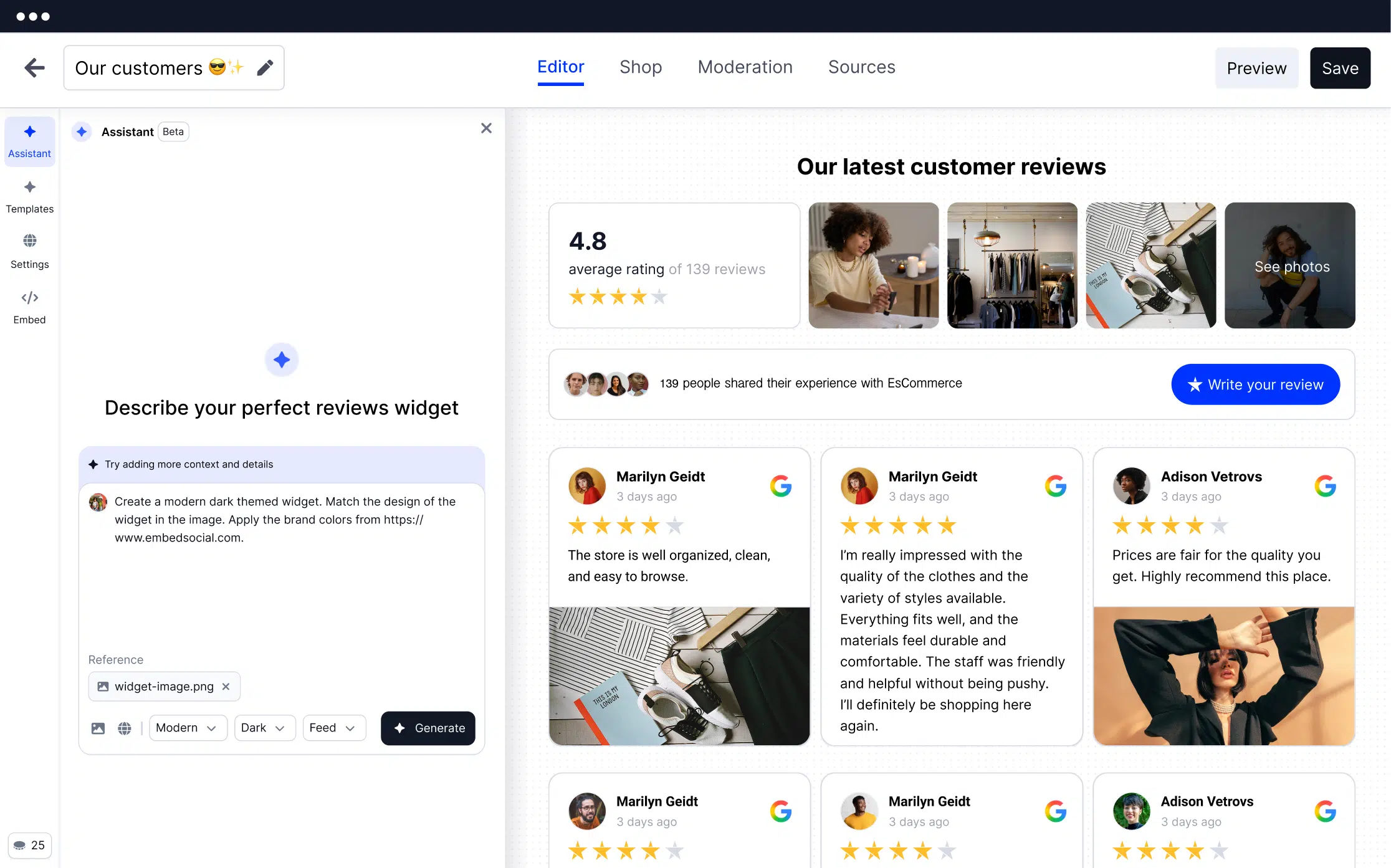
The platform helps you automatically generate and display your Google reviews and transform them into beautiful widgets that fit any PageCloud design.
Combine your favorite testimonials from different review sources into one place and enjoy the boost in trust and sales!
The code to embed Google reviews works with any website builder so you won’t need to install anything in order to show the widget in your PageCloud website.
Benefits for PageCloud websites
Display user-generated content,
Engage website visitors,
Improve time spent on site,
Encourage conversions and sales,
Reduce the time of adding reviews by yourself,
Inspire clients to give you more reviews,
Features
Completely mobile-responsive layouts,
Fully customizable widgets,
Advanced modification options,
Custom CSS editor,
Aggregated review stars schema,
Facebook ads from Google Reviews,
Email requests for new reviews,
Autoresponder for reviews,
‘Leave a Review’ buttons and Review Badges,
Bulk reviews import from 3rd parties,
Combo feed with testimonials from different sources,
How to embed Google reviews in PageCloud
No installation is required to use the EmbedSocial platform in PageCloud. Just follow these steps to embed your Google reviews on a PageCloud website:
Step 1: Start free trial for EmbedSocial and connect your Google account
Start free trial for EmbedSocial and connect your Google account.
Step 2: Create your reviews widget
Create your reviews widget.
Step 3: Copy the provided HTML code
Copy the provided HTML code.
Step 4: Log in to your PageCloud account
Log in to your PageCloud account.
Step 5: Select the page where you want to display the widget
Select the page where you want to display the widget.
Step 6: Choose Apps from the menu
In the edit view of your page, choose ‘Apps’ from the menu.
Step 7: Pick the Embed option
Pick the ‘Embed’ option.
Step 8: Paste the EmbedSocial code
Paste the EmbedSocial code and click ‘OK’.