


What is an Instagram Feed Aggregator

EmbedSocial is a powerful Instagram feed aggregator that allows you to create amazing and beautiful feed widgets for your site with Instagram photos and videos.
With EmbedSocial, you can also generate and display posts published by other Instagram users that mention your brand or posts from specific hashtags.
It offers extensive customization options: all kinds of sources supported, content moderation, more than 10 ready-to-go layouts, custom CSS options, and a fully adaptive layout responsive for any device.
Create your customized Instagram Feed widget for Webflow, match your website’s style and colors, and add it to any Webflow page, post, sidebar, footer, or wherever you like on your site.
The best thing is that EmbedSocial runs on the latest Instagram API, so there are no additional technical requirements or updates by the user. We’ve got you covered!
Embedding an Instagram Feed widget onto your Webflow site has never been easier. Our widgets are designed to work flawlessly on Webflow and display social proof to increase engagement and conversions.
As Webflow’s mission is to empower designers, creative professionals, and entrepreneurs to create for the web, our goal is to provide them with an easy social media widget tool to extend their creativity to engage more visitors.
Benefits of Instagram widget for your Webflow website
Improve the average time visitors spend on your website,
Get a higher user engagement level,
Increase conversions, by displaying social proof.
Enrich your website content,
Deliver improved user interface and user experience,
Turn visitors into Instagram followers,
Instagram Feed Widget features for Webflow
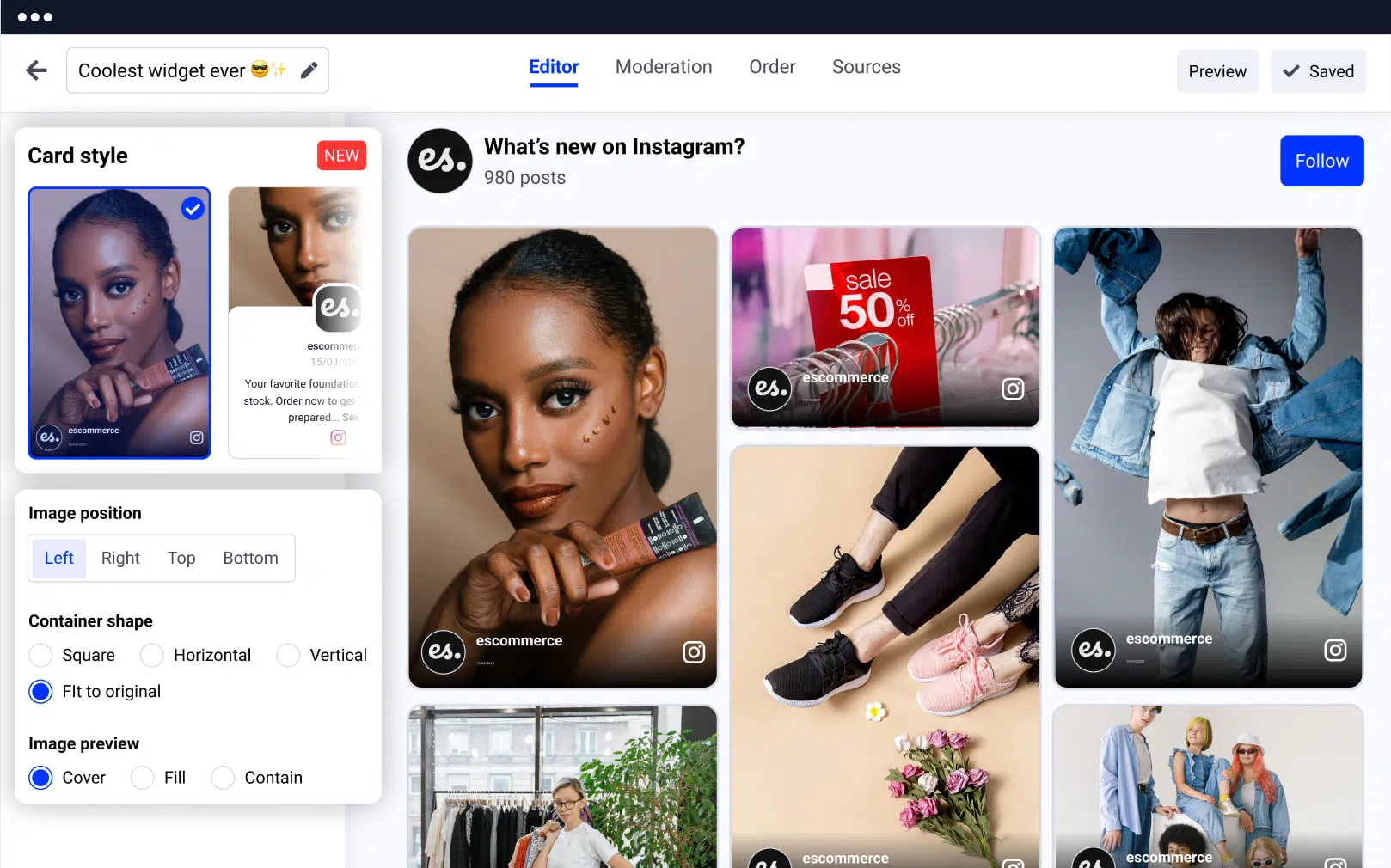
Mobile-responsive widget,
11 Instagram feed layouts, that match any Webflow design.
Ready-to-go customization options, for your widget appearance.
Advanced feed moderation, Select the post you want to appear on your widget and sort them by priority.
Automatically sync the latest Instagram posts,
Negative keywords option, to ban posts with specific hashtags from showing on the widget.
Shoppable Instagram widget, with a variety of CTA buttons available.
Custom CSS option, for advanced widget design.
Activate Google Analytics, to track your progress.
Combine with other social networks, Create a combined widget with feeds from Facebook, Twitter, YouTube, Vimeo, TikTok or create a custom feed.
How to embed Instagram feed on Webflow?
Here are the steps on how to embed the Instagram feed widget in Webflow:
Step 1: Start a free trial
Start a free trial for EmbedSocial and connect your Instagram account.
Step 2: Choose Instagram feed type
Choose the type of Instagram feed (hashtag, mentions, account).
Step 3: Moderate or customize
Moderate or customize the Instagram widget.
Step 4: Copy the code
Copy the code located in the top right corner.
Step 5: Open Webflow page
Go to Webflow and open the page where you want to embed.
Step 6: Drag the Embed component
Click ‘Add’ in the top-left corner, scroll, and drag the Embed component.
Step 7: Paste the EmbedSocial code
Paste the code you copied from EmbedSocial.
Step 8: Save and Close
Click the Save and Close button.
Step 9: Publish
Click Publish and click your site URL.
Please note that once you display the Instagram Feed widget on your Webflow site, you have full control over it and you can transform the look and feel of the widget anytime you want using your EmbedSocial account.
If you need any assistance in creating and customizing the desired Instagram Feed widget, don’t hesitate to reach out to us, and we will be delighted to help you create a superior experience for your website visitors.
Turn your website into a powerful showcase of real customer moments. Use our easy-to-embed Instagram widgets to boost credibility, drive engagement, and convert visitors into buyers. no coding required.
Best practices for displaying Instagram feed

Place it where it matters most, Embed your Instagram feed in high-traffic areas like your homepage, product pages, or even your footer. Visibility is key. the more users see it, the more they trust your brand.
Use a bold, clear headline, Draw attention with a headline that speaks to authenticity: “See How Our Customers Use [Your Product]” or “Real Results from Real People”. A strong intro helps frame the content and sparks curiosity.
Prioritize visual aesthetics, Choose a layout that fits your Webflow design. grid, slider, or collage. Keep the spacing, colors, and styles consistent with your brand to ensure the feed feels native to the website experience.
Go beyond static. Use a carousel, Showcase more content in less space with a slider or carousel format. This keeps the section compact while still offering variety and motion that naturally draws the eye.
Highlight shoppable or tagged posts, Turn engagement into conversions by featuring tagged products or CTA buttons. This is perfect for e-commerce brands looking to create a seamless journey from inspiration to checkout.