

Learn how to embed Google reviews on your PageCloud website with our easy-to-follow guide.
Enhancing your site’s trustworthiness and engaging more effectively with potential customers starts with showcasing authentic feedback.
This article walks you through the simple process of integrating Google reviews, helping to boost your online credibility and presence seamlessly.
In this tutorial:
- Quick guide: Embed Google reviews on PageCloud for free
- Complete guide on how to add Google reviews to PageCloud website
- Video guide: Add and display Google reviews on PageCloud
Quick guide: Embed Google reviews on PageCloud for free
Here is how to add Google reviews to PageCloud with the free Google reviews widget;
- Register and log into the free Google reviews widget;
- Navigate to the ‘Sources’ tab (left-hand side) and add Google as a source;
- Next, type your location in the map, click ‘Select location’ and the system will generate your most relevant Google reviews;
- Open the widget editor, in the customization options, customize your widget, and copy its code;
- Login to PageCloud
- On the page where you want to display the reviews, click ‘Edit’:
- In the edit view of your page, navigate to the ‘Apps’ menu, select the ‘Embed’ feature, paste the EmbedSocial code into the provided field, and click ‘OK’ to finalize the integration.
Complete guide on how to add Google reviews to PageCloud website
To effectively add Google reviews to your Pagecloud website and boost your online visibility to prospective clients, follow these detailed instructions:
Phase 1: Create and customize your Google reviews widget
- Sign up for the Google reviews widget;
- Navigate to the ‘Sources’ tab (left-side ribbon), click ‘Add source’ and choose Google;
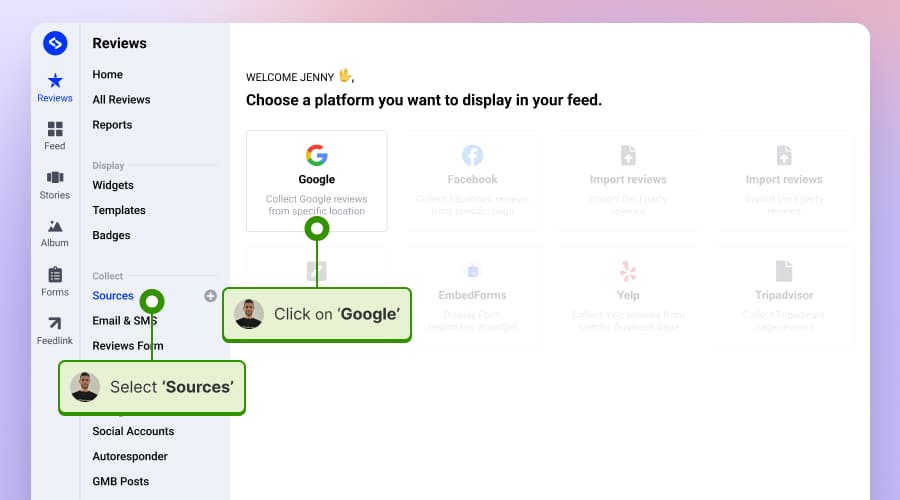
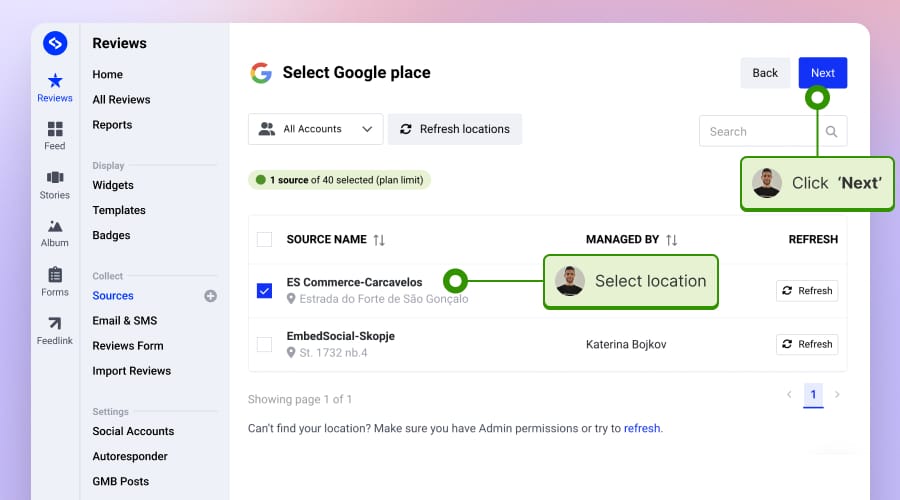
- Connect your Google Business Profiles, and the system will pull your locations. Choose the one you want to get reviews from and click ‘Next.’
- Hover over the widget template you would like to use and tap ‘Use this template’;

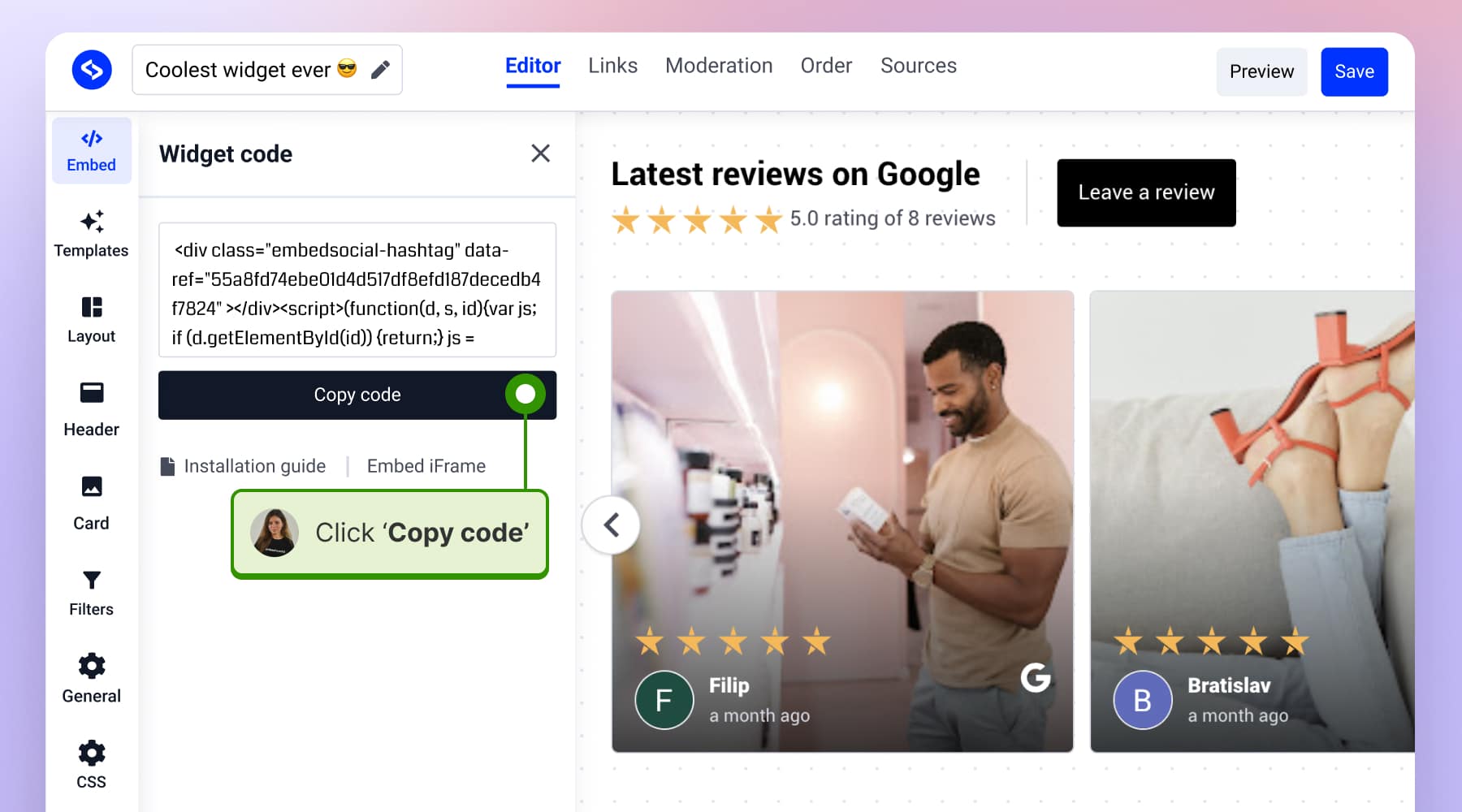
- Customize your Google reviews widget as you see fit, tap ‘Embed’ (left-side ribbon), and click ‘Copy code’;


Phase 2: Add your Google reviews code to your PageCloud website
- Login to PageCloud
- On the page where you want to display the reviews, click ‘Edit’
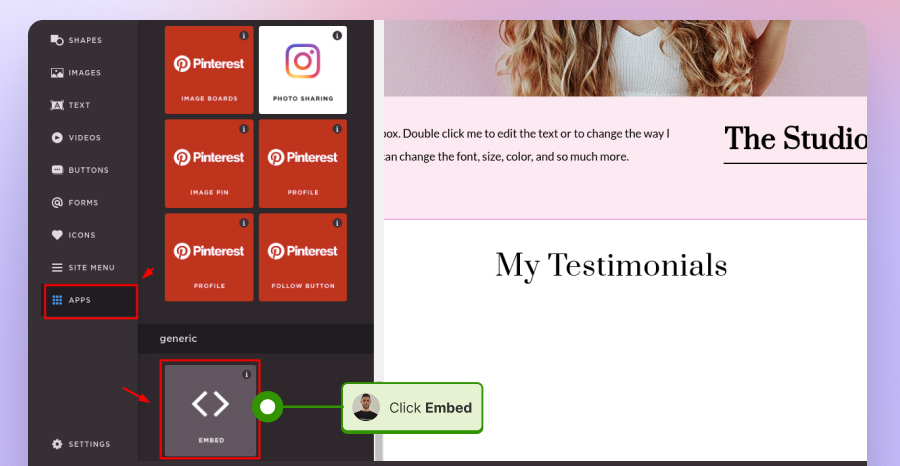
- In the edit view of your page, navigate to the ‘Apps’ menu, select the ‘Embed’ feature, paste the embed code into the provided field, and click ‘OK’ to finalize the integration.

Video guide: Add and display Google reviews on PageCloud
Here’s a video outlining the entire 2-minute process:
Live demo: Google reviews widgets in action
Browse the widget library and pick the Google reviews widget layout that best fits your website design.
Sign up for the Google reviews widget
By learning how to embed Google reviews on your PageCloud you are a step closer to enhancing your website to sell more.
By applying the steps provided and with a little kind support, you can effectively display customer testimonials, enriching your site’s authenticity and enhancing its appeal to prospective clients.





![11 Best Social Media Widgets for Websites [+Top Use Cases]](https://embedsocial.com/wp-content/uploads/2023/03/Social-Media-Carousel-widget-template.webp)
![How to Embed Testimonials on Website in 2026 [2 Methods + Tips]](https://embedsocial.com/wp-content/uploads/2022/11/testimonials-dark-single-slider.jpg.webp)