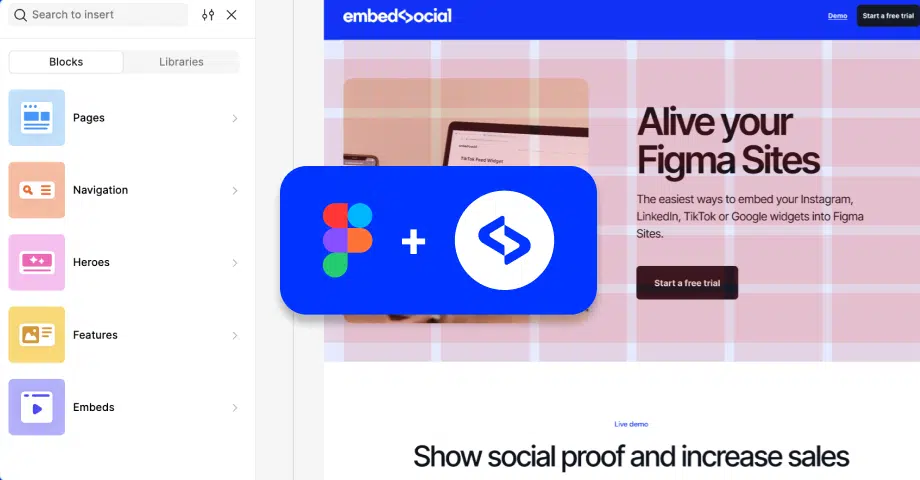

Yes! Figma has a new web builder called Figma Sites, and now you can design and publish a website in a no-code environment.
You can create responsive, visually polished landing pages, portfolios, or internal projects - all powered by your Figma designs. But what if you want to make your pages more dynamic with real-time social proof?
Now you can embed any EmbedSocial widget - an Instagram feed, a Google Reviews slider, or a TikTok mentions gallery - directly into your Figma Site.
What are Figma Sites?
Figma Sites is a lightweight publishing tool that allows you to turn any Figma design into a live, shareable web page with no need for developers.
Think of it as a way to ship micro-sites, campaigns, or presentations using your existing design system. And now, with embed support, you can enhance your pages with live widgets from EmbedSocial. EmbedSocial is a social media aggregator that pulls your posts and reviews into one embeddable feed.
Steps to embed Instagram or Google reviews widgets in Figma Sites
Only iframe codes are supported in Figma Sites. This means you need to use the iframe embed option from your EmbedSocial widget. Here’s how to do it step-by-step:
Step 1: Copy the widget’s Iframe code
- Go to your EmbedSocial account or create a new account if you are a new user.
- Go to Widgets, create new or select the widget you want to embed (Instagram Feed, Google Reviews, TikTok, etc.)
- In the Editor, in the left-hand settings panel, click the ‘Embed’ tab and click
- Copy the
iframecode (make sure you do not use the JavaScript version)

Step 2: Add the HTML Block in Figma Sites
Follow these steps to paste your code inside your Figma Site:
- Open your Figma Site project.
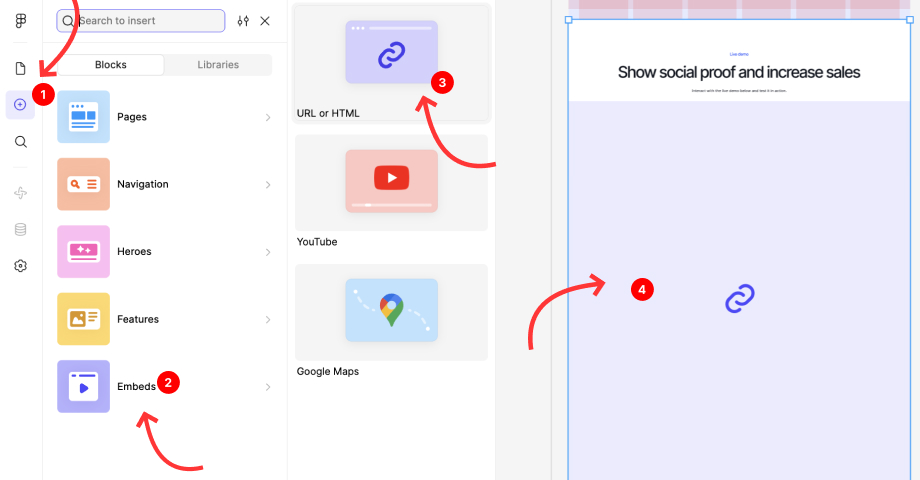
- From the left-hand panel, click the ➕ button to add a new block.
- Select Embeds from the block options.
- Then choose the URL or HTML block. You will need to adjust the block in the area where you want to embed the code.
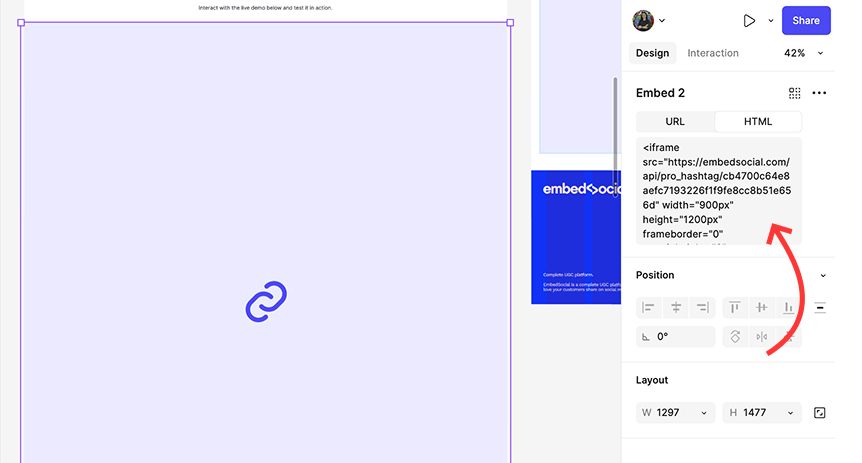
- You will see a new HTML panel on the right, where you will need to paste your
iframecode.


Step 3: Adjust position and publish
- After embedding, you can adjust the block’s position, width, and height.
- Your widget will render live inside the Figma Site layout, allowing you to preview and style the rest of your content accordingly.
- Click Publish to see the changes live.
Here is a live Figma site with an embedded Instagram widget by EmbedSocial - see it in action.

Getting started
You’ll now have a fully functional EmbedSocial widget inside your Figma Site - whether it shows Instagram UGC, customer testimonials, a shippable widget, or real-time Google Reviews. It’s a simple way to turn your static design into a living experience powered by authentic content. If you’re new to this, learn what counts as user-generated content and how to build a social media feed before you embed one.





![11 Best Social Media Widgets for Websites [+Top Use Cases]](https://embedsocial.com/wp-content/uploads/2023/03/Social-Media-Carousel-widget-template.webp)
![How to Embed Testimonials on Website in 2026 [2 Methods + Tips]](https://embedsocial.com/wp-content/uploads/2022/11/testimonials-dark-single-slider.jpg.webp)
