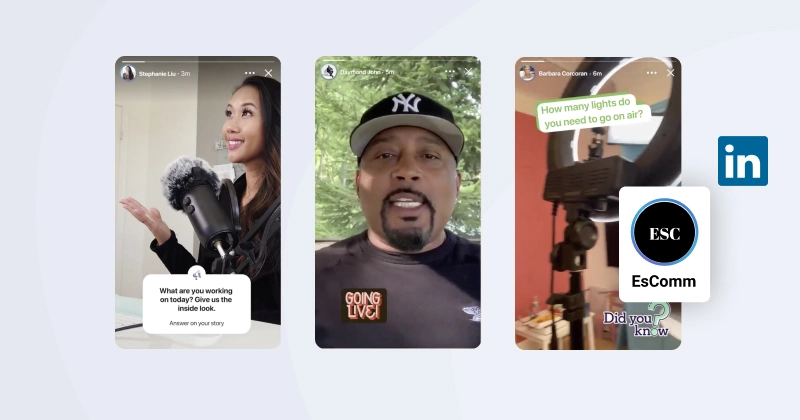

Quick answer: LinkedIn Stories no longer exist. LinkedIn discontinued the Stories feature on September 30, 2021, about a year after launch, because it never gained traction with professional users. If you came here to create or embed a LinkedIn Story, you cannot anymore. Here is what happened and what to use instead.
What’s inside
- What happened to LinkedIn Stories
- Why LinkedIn shut Stories down
- What to use instead
- Embed your LinkedIn content on your website
What happened to LinkedIn Stories {#what-happened}
LinkedIn launched Stories in 2020, following the format made popular by Snapchat, Instagram, and TikTok: short vertical photos and videos that disappear after 24 hours. The idea was to bring casual, in-the-moment sharing to a professional network.
It did not stick. On September 30, 2021, LinkedIn removed the feature entirely. The disappearing-content format simply did not match how people use a professional network, and engagement stayed low.
Why LinkedIn shut Stories down {#why}
LinkedIn was candid about it. The team said Stories did not align with the professional tone of the platform and were not a fit for its core users. Instead of patching the format, LinkedIn announced it would take what it learned and reinvest in a short-form video experience built for professional content, rather than ephemeral 24-hour posts.
In other words: the format is gone for good. There is no “turn it back on” setting, and there is no replacement Stories bar.
What to use instead {#what-instead}
If your goal was to share timely, engaging professional content, here is where that goes now:
- Native LinkedIn video is the direct successor. It is permanent, it shows up in the feed, and it is where LinkedIn now puts its attention for short-form content.
- Image and document carousels work well for tips, how-tos, and “swipe through” posts, the kind of thing people used to put in a Story.
- Regular LinkedIn posts remain the workhorse for announcements and updates, and unlike Stories they do not vanish after a day.
Embed your LinkedIn content on your website {#embed}
The lesson from Stories is a useful one: a feature you build your strategy around can disappear overnight. The content you own on your own website never does.
With EmbedSocial you can pull your LinkedIn posts into a customizable widget and display them on any website, so your professional updates keep working as social proof long after they have scrolled past in the feed. Full walkthrough here: how to embed a LinkedIn feed on your website.
Here is how to get started:
- Create an account for EmbedSocial
- Connect your LinkedIn Page
- Pick a widget template and customize the layout
- Copy the code and paste it anywhere on your website
Start free trial. All features included. Cancel anytime.





![11 Best Social Media Widgets for Websites [+Top Use Cases]](https://embedsocial.com/wp-content/uploads/2023/03/Social-Media-Carousel-widget-template.webp)
![How to Embed Testimonials on Website in 2026 [2 Methods + Tips]](https://embedsocial.com/wp-content/uploads/2022/11/testimonials-dark-single-slider.jpg.webp)
